How to Create a Multi-Resolution favicon.ico File
Creating a proper favicon.ico file is one of those small details that makes a website feel polished. For years, my understanding of favicons was outdated. I first learned about them more than 20 years ago when they were introduced in early versions of Internet Explorer. Back then, a favicon was just a 16×16 pixel image limited to 256 colors.
I revisited the topic recently because the favicon on my site was not displaying in Bing search results, even though I had a 16×16 favicon and additional icon images defined in the HTML <head> using <link rel="icon">. Clearly, something had changed.
Modern browsers and search engines expect more than a single tiny image. A favicon is now a multi-resolution bundle stored inside one .ico file. This allows browsers and operating systems to choose the best size automatically depending on context. High-DPI screens, bookmarks, taskbars, and search listings all benefit from multiple embedded resolutions.
In this guide, I will show how to export multiple PNG sizes from a vector design in Inkscape and combine them into a proper multi-resolution favicon.ico using ImageMagick.
Why You Need a Multi-Size Favicon
Favicons appear in more places than browser tabs. They show up in bookmarks, pinned tabs, taskbars, desktop shortcuts, and search results. Each of these contexts may use a different size.
Browser tabs typically use 16×16 icons. Bookmarks and Windows taskbars often use 32×32. Some desktop environments reference 48×48. High-DPI displays benefit from 64×64 or larger.
A properly built .ico file can contain multiple resolutions. The browser or operating system selects the closest match. This prevents scaling artifacts and keeps your icon sharp everywhere it appears.
Instructions
Step 1: Design Your Icon in Inkscape
If you do not already have it installed, download and install Inkscape.
Inkscape is ideal for favicon design because it is vector-based. Vector graphics scale cleanly without losing quality. This means you can design your icon once and export it at any size.
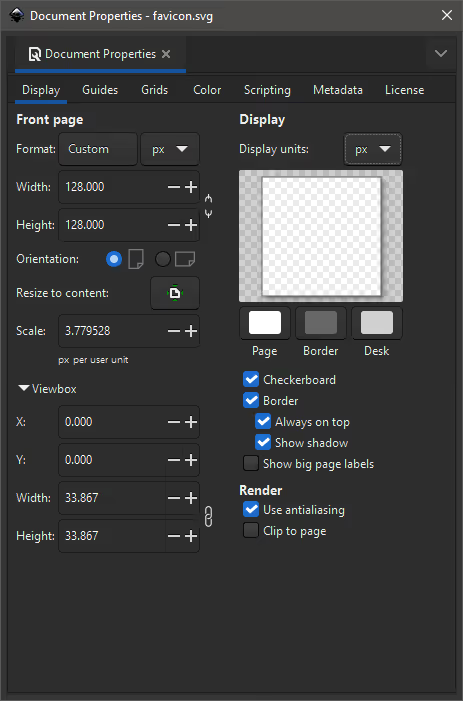
Set Up Your Document
- Open Inkscape.
- From the
Filemenu, selectDocument Properties. - On the
Displaytab:- Set
Formattopx(pixels). - Optionally enable a
Checkerboardbackground. - Set the canvas width and height to a large square size, such as 512×512 pixels.
- Set
Designing at a high resolution makes it easier to maintain clarity when exporting smaller versions.
Design Tips
Favicons are extremely small. Clarity matters more than detail.
Keep the design simple and bold. Use strong contrast. Avoid thin lines and intricate shapes that disappear at smaller sizes.
Periodically zoom out to 16×16 while designing. If the icon becomes unclear, simplify it.
Step 2: Export Multiple PNG Sizes
Once your design is ready, export multiple PNG versions.
- In Inkscape, from the
Filemenu, selectExport.... - On the
Single Filetab:- Select
Page. - Set
WidthandHeight. - Set the export file name, e.g.,
favicon-512x512.png. - Click
Export.
- Select
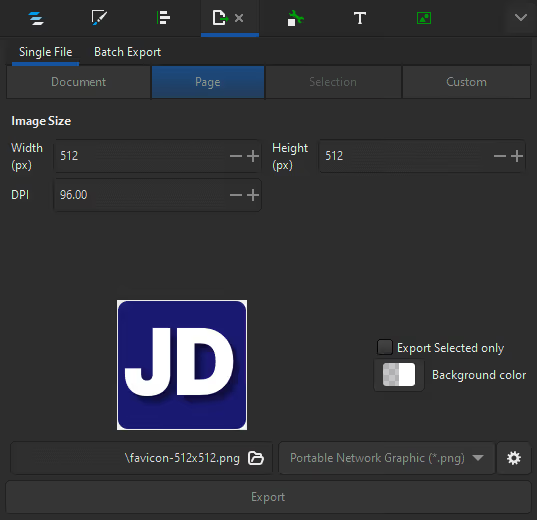
Export the image and repeat the process for each required size.
At a minimum, export:
- 16×16
- 32×32
- 48×48
For better high-DPI support, consider also exporting 64×64 or 128×128.
All exported images should come from the same vector source to ensure consistency.
Step 3: Install ImageMagick
To combine the PNG files into a single .ico file, download and install ImageMagick from the official website.
ImageMagick is a command-line image processing tool that can package multiple PNG images into one multi-resolution favicon file.
Step 4: Combine PNGs into favicon.ico
Open a terminal or command prompt in the folder containing your exported PNG files.
Run:
magick favicon-16x16.png favicon-32x32.png favicon-48x48.png favicon.icoIf you are using an older version of ImageMagick, use:
convert favicon-16x16.png favicon-32x32.png favicon-48x48.png favicon.icoThis command creates a single favicon.ico file that contains all specified resolutions.
Optional: Verify the ICO File
To confirm that your file contains multiple resolutions, run:
magick identify favicon.icoThe output should list each embedded image size.
favicon.ico[0] ICO 16x16 16x16+0+0 8-bit sRGB 0.001u 0:00.000
favicon.ico[1] ICO 32x32 32x32+0+0 8-bit sRGB 0.004u 0:00.004
favicon.ico[2] ICO 48x48 48x48+0+0 8-bit sRGB 7406B 0.006u 0:00.005
Step 5: Add the Favicon to Your Website
Place favicon.ico in your website’s root directory:
/favicon.icoThen add this line inside the <head> section of your HTML:
<link rel="icon" href="/favicon.ico" type="image/x-icon">Most browsers automatically detect /favicon.ico, but explicitly linking to it is best practice.
Why This Workflow Is Better
Online favicon generators are convenient, but they may compress images unpredictably or create unnecessary variations. By designing in Inkscape and packaging with ImageMagick, you maintain full control.
The process is scriptable and easy to repeat. If your branding changes, you can regenerate every required size in minutes.
Summary
A modern favicon.ico is more than a 16×16 image. It should contain multiple resolutions so browsers and search engines can select the best size automatically. Using Inkscape and ImageMagick gives you full control and ensures your favicon displays correctly and consistently everywhere.