Remove the Clickable Link From a SharePoint Lookup Column Using JSON Column Formatting
SharePoint lookup columns are typically rendered as clickable links. In many cases, that behavior is useful. But in other cases, it creates unnecessary friction, especially when users do not actually need to navigate to the source item.
A full redesign of the list, or removal of the lookup column entirely, is not necessary. JSON column formatting controls how the value is displayed and removes the hyperlink behavior while keeping the data intact.
Scenario Overview
Consider a SharePoint list that tracks Projects. One of the columns is a lookup to a separate list that stores Project Status values such as Planned, In Progress, On Hold, or Completed.
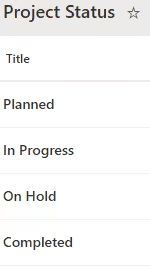
By default, SharePoint renders these lookup values as clickable links pointing back to the source status item. In this case, that behavior is unnecessary. Users are not expected to edit or inspect the status list itself. They just need to see the value in the current view.
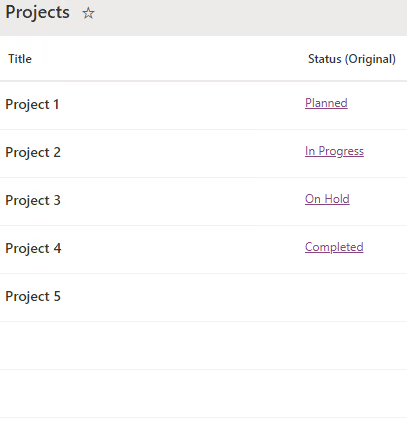
This creates a small but common usability issue: users click out of the list unintentionally and lose context.
The goal is simple display-only text that stays within the context of the list view.
Instructions
Step 1: Open the List View and Locate the Column
Navigate to the SharePoint list and open a view where the lookup column is displayed. Column formatting must be accessed from a view where the column is visible.
Find the lookup column that contains the project status values.
Column formatting is stored on the column itself, not the view, so once applied it typically appears across all views where the column is included.
Step 2: Open Column Formatting
Click the column header, then select Column settings followed by Format this column.
Step 3: Switch to Advanced Mode
In the formatting pane, choose Advanced mode to paste in custom JSON.
Step 4: Apply the JSON Formatting
Use the following JSON to render the lookup value as plain text:
{
  "$schema": "https://developer.microsoft.com/json-schemas/sp/v2/column-formatting.schema.json",
  "elmType": "div",
  "txtContent": "@currentField.lookupValue"
}
Step 5: Save Changes
Click Save and return to the list view.
What the JSON Is Doing
This is a lightweight formatting rule, but each part plays a specific role in overriding SharePoint’s default behavior.
$schemapoints to the SharePoint column formatting schema. It is optional. It helps with validation and IntelliSense in some editors.elmType: "div"tells SharePoint to render the field as a simple block-level HTML element instead of the default link.spanis also an option for inline behavior, butdivallows more flexibility for layout and styling.txtContent: "@currentField.lookupValue"is the key piece. Instead of rendering the full lookup object, this tells SharePoint to display only the lookup’s text value. This replaces SharePoint’s default link rendering and outputs the display text instead.
This formatting does not change permissions or data relationships. It only changes how values render in the view. Users can no longer click the displayed value to navigate to the referenced item from that column.
Optional Enhancements
Once rendering is under direct control, the behavior can be extended further. These small additions help tailor the display for readability, usability, and data quality.
Add Styling
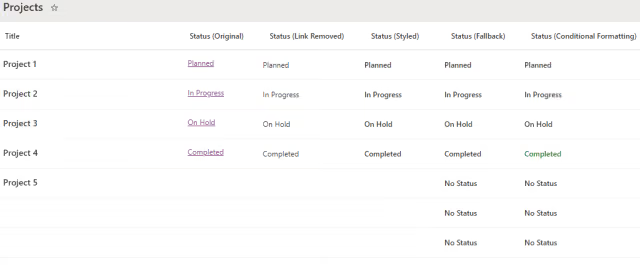
Use styling to improve visual hierarchy or align the column with the overall list design. This is useful for making status values or key fields stand out slightly without changing the data itself.
{
  "$schema": "https://developer.microsoft.com/json-schemas/sp/v2/column-formatting.schema.json",
  "elmType": "div",
  "txtContent": "@currentField.lookupValue",
  "style": {
    "font-weight": "600",
    "color": "#323130"
  }
}
Handle Empty or Missing Values
Lookup fields can sometimes return null or blank values when no value is selected or when the lookup does not return a value. A fallback can keep the list visually consistent.
{
  "$schema": "https://developer.microsoft.com/json-schemas/sp/v2/column-formatting.schema.json",
  "elmType": "div",
  "txtContent": "=if(@currentField.lookupValue, @currentField.lookupValue, 'No Status')",
  "style": {
    "font-weight": "600",
    "color": "#323130"
  }
}
Format Multi-Value Lookup Columns
The @currentField.lookupValue pattern works well for a single-value lookup. A lookup column that allows multiple selections contains an array of lookup objects, so each value must be rendered separately.
SharePoint column formatting provides the forEach attribute for iterating over the members of a multi-value field. Applying forEach to a child element renders that element once for each value in the array.
For example, suppose the Projects list has a multi-value lookup column named Departments, with values such as Design, Engineering, and Marketing. The following JSON renders each value as a small rounded badge rather than a single line of comma-separated text.
{
  "$schema": "https://developer.microsoft.com/json-schemas/sp/v2/column-formatting.schema.json",
  "elmType": "div",
  "style": {
    "display": "flex",
    "flex-wrap": "wrap",
    "gap": "4px"
  },
  "children": [
    {
      "elmType": "span",
      "forEach": "department in @currentField",
      "txtContent": "[$department.lookupValue]",
      "style": {
        "background-color": "#f3f2f1",
        "border-radius": "12px",
        "padding": "2px 10px",
        "font-size": "12px"
      }
    }
  ]
}
The forEach attribute creates one span for each member of the field. Inside the loop, [$department.lookupValue] retrieves the display text for the current lookup value, and the styling on the span gives each value its own visual boundary.
This approach removes the clickable lookup links while keeping several selected values easy to scan, which reads more clearly than a single run-on line of text once a column has more than a few selections.
Conditional Formatting
Conditional formatting is useful for giving status values visual meaning. For example, completed items can be highlighted in green while everything else stays neutral.
{
  "$schema": "https://developer.microsoft.com/json-schemas/sp/v2/column-formatting.schema.json",
  "elmType": "div",
  "txtContent": "=if(@currentField.lookupValue, @currentField.lookupValue, 'No Status')",
  "style": {
    "font-weight": "600",
    "color": "=if(@currentField.lookupValue == 'Completed', '#107c10', '#323130')"
  }
}
Additional Reading
For a deeper breakdown of supported properties and formatting patterns, refer to Microsoft’s official documentation on SharePoint column formatting.
Results
After applying this formatting, the lookup column will display as plain text instead of a clickable link.
This helps maintain focus inside the list, especially in dashboards or operational views where users are scanning and updating items frequently.
Summary
Lookup columns in SharePoint default to clickable links, but that is not always desirable. Using JSON column formatting, the default rendering can be overridden to display only the lookup value as plain text.
This keeps the data structure intact while improving how users interact with the list. It reduces unnecessary navigation, improves focus, and provides more control over how information is presented in list views.