How to Prevent Infinite SharePoint Trigger Loops in Power Automate Flows
One of the more frustrating things in Power Automate is a trigger loop, where a flow appears to work perfectly but never stops running.
This usually happens when a flow uses the SharePoint trigger When an item is created or modified and updates the same item it just reacted to. At that point, the flow begins reacting to its own updates. The flow runs, updates the item, SharePoint registers the update, and the cycle starts over.
Nothing is actually broken here. SharePoint and Power Automate are behaving exactly as designed.
There are two different problems to solve: preventing the flow from responding to its own update, and preventing the flow from performing an unnecessary update in the first place.
The fix requires some discipline in how the trigger and update logic are designed.
Scenario Overview
A common use case is a SharePoint list where values are calculated or derived based on other fields. It might be a status field, a formatted value for reporting, or a simple flag indicating that an item has been processed.
The flow is usually structured like this: it triggers when an item is created or modified, evaluates one or more fields, and then updates the same item with new values.
The problem appears after the first successful run. That update becomes a new modification event, which triggers the flow again, even if nothing meaningful has changed. Avoiding this loop requires controlling both when the flow is allowed to run and whether it should actually update anything at all.
Instructions
Step 1: Filter the Trigger Using a Service Account
The first line of defense is to stop the flow from reacting to its own updates.
The SharePoint trigger treats both user-initiated and flow-initiated modifications as modification events. The Modified By value can still be used to distinguish who made the change.
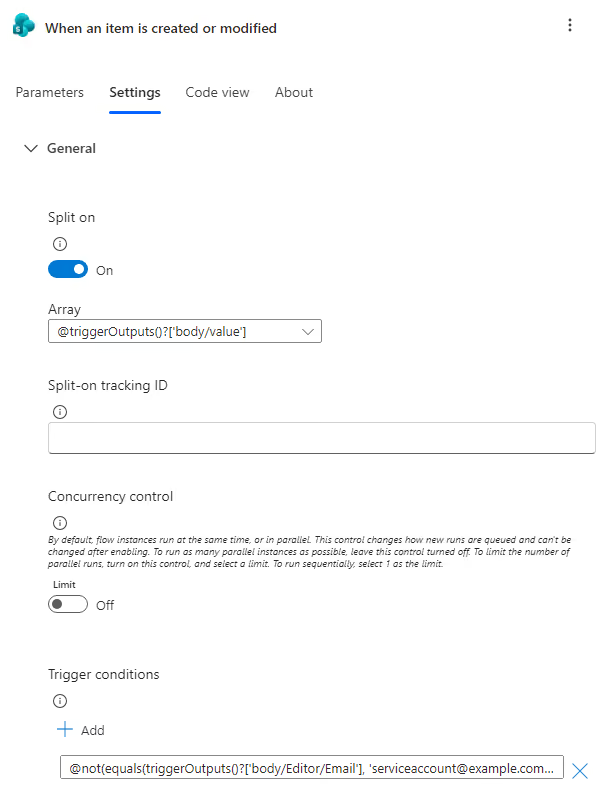
A common approach for production flows is to use a dedicated service account, for example serviceaccount@example.com. If the flow updates the SharePoint item using that account’s connection, the account can be used to identify and ignore the flow’s own updates.
@not(equals(triggerOutputs()?['body/Editor/Email'], 'serviceaccount@example.com'))This ensures that when the service account performs an update, the flow does not trigger again. It is a simple pattern, but it is often the difference between a stable flow and one that loops.
Unlike a standard Condition action, trigger conditions are evaluated before the flow starts, which prevents unnecessary runs entirely rather than stopping them after execution begins.
NOTE: This approach depends on the SharePoint update being performed using the same identity. If different connections or identities can modify the item, those updates may not be filtered by this condition.
Step 2: Confirm That a Real Change Exists
Even with trigger filtering in place, it is still important to verify whether the flow actually needs to do anything.
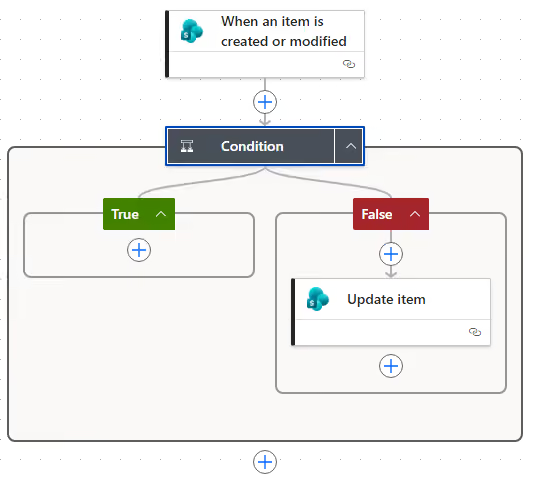
Right after the trigger fires, add a Condition action that compares the current SharePoint value with what the flow expects it to be. For example, in a calculated field, compare the existing value with the calculated result. If they match, the flow can exit safely. If they differ, it continues.
This prevents unnecessary updates and reduces the number of modification events generated in SharePoint.
NOTE: The trigger output does not always reflect the full current state of every field. If the comparison depends on the latest values in SharePoint, add a
Get itemaction before theConditionto retrieve the current values directly from SharePoint.
Step 3: Be Selective With Updates
When the flow does reach the update step, avoid rewriting every field just because those fields are available.
Only update fields that actually need to change. Writing an item back unnecessarily can generate another modification event, even when the resulting values are unchanged. That is enough to retrigger the flow in many setups.
Keeping updates minimal reduces noise in the system and helps prevent unexpected downstream behavior, especially in environments where multiple flows or integrations touch the same list.
Step 4: Use a Control Flag for More Complex Scenarios
Once flows start doing more than simple calculations, it often helps to introduce an explicit control field in the list. This column can track whether the flow has already acted on a given item.
The pattern is straightforward: the flow checks the flag before doing anything. If the item has already been processed, it exits early. If not, it performs its logic and sets the flag as part of the update. If the item needs to be processed again after a later user change, the flag must also be reset or replaced with a state that represents the current processing cycle.
This becomes especially useful when several steps or flows are involved because it provides a visible state directly in SharePoint. That is often easier than digging through flow run history to understand what happened.
Common Edge Cases
Even with the patterns above in place, there are a few situations that can still produce unexpected behavior in real environments.
Multiple Flows Updating the Same List
When more than one flow writes to the same SharePoint list, things get harder to predict. Even if a flow is properly filtered, another flow using a different connection can still trigger it. This tends to happen in mature environments where automation grows over time. A list that started with one flow often ends up with several.
In those cases, either standardize on a single service account or introduce flow-specific control fields so each automation can independently determine whether it should run.
SharePoint Metadata Updates Can Trigger Runs
Not every SharePoint modification involves a visible business-field change. A SharePoint update can change system metadata such as Modified and Modified By even when no business field has meaningfully changed. The trigger still sees the item as modified. This is one of the reasons trigger conditions are more reliable than logic applied after the flow starts. The trigger itself needs to filter out noise before execution begins.
Person, Lookup, and Choice Fields Behave Differently
Some SharePoint fields do not behave like simple strings. Person, Lookup, and Choice fields often return structured data rather than plain values. Depending on the situation, they may return objects, arrays, or null values, which can lead to inconsistent comparisons if the logic assumes a simple value. This is usually where flows behave differently in testing versus production, especially when empty or partial data is involved.
Frequent Updates and Concurrent Runs
When a flow is triggered multiple times in quick succession, Power Automate can queue and process runs concurrently. Without concurrency control enabled on the trigger, multiple instances of the same flow can run simultaneously against the same item. This creates a race condition where two runs check the control flag at the same time, both see it as unset, and both proceed. The result is duplicate updates even when the flag logic is otherwise correct. If the control flag must prevent duplicate processing, enabling trigger concurrency control with a degree of parallelism of 1 can prevent overlapping runs from evaluating the same item simultaneously. This limits the flow to one concurrent trigger run at a time, which can reduce throughput on frequently updated lists.
Results
When these patterns are applied together, the behavior of the flow becomes much more predictable. Instead of reacting to every change, the flow only runs when something meaningful has actually happened. It checks whether work is needed before doing anything, and it avoids writing unnecessary changes back to SharePoint.
In practice, this means fewer runs, fewer surprises, and significantly less time spent debugging why a flow started again for no obvious reason.
Summary
SharePoint-triggered loops in Power Automate are rarely caused by complex logic. They usually come down to one issue: the flow is reacting to its own updates.
Once that is understood, the solution is straightforward. Filter the trigger using a service account so the flow ignores changes it made itself. Verify that the change requires an action before proceeding and avoid writing unnecessary data back to SharePoint. The same idea applies to concurrency control and field-level comparisons. Small configuration choices often prevent the kinds of subtle failures that are hardest to debug later.
None of these patterns are complicated on their own, but together they make the difference between a flow that quietly does its job and one that keeps firing endlessly in the background.