Astro: Add JSON-LD Structured Data to a Website for Rich Search Results
Search engines cannot always infer what every page represents. JSON-LD explicitly describes the content, helping pages become eligible for rich results such as articles and breadcrumbs. This article walks through creating a reusable component to dynamically add JSON-LD structured data tailored to each rendered page on an Astro website.
Building the Structured Data Component
Step 1: New Component to Render Structured Data
Begin by creating a new component called HeadMeta.astro. This component adds globally shared elements in the HTML <head> section, such as <title>, <meta>, <link>, <style>, and <script>. It also includes structured data as a <script> element with the type set to application/ld+json.
Conceptual Model
The following diagram represents a simplified conceptual model of the JSON-LD graph. It is intentionally simplified to illustrate the overall structure. In an actual implementation, the structured data may include additional properties required for validation and production use.
Adjust the breadcrumb trail and schema properties to match the website’s navigation and content model.
Resist the temptation to add every schema.org type available. Structured data should accurately describe the page rather than maximize the number of entities.
@graph
├── Person
├── WebSite
│   └── publisher ──► Person
├── WebPage
│   ├── mainEntity ──► BlogPosting
│   ├── isPartOf ──► WebSite
│   └── breadcrumb ──► BreadcrumbList
├── BlogPosting or Article
│   ├── author ──► Person
│   └── mainEntityOfPage ──► WebPage
└── BreadcrumbList
Why Use @graph
A page containing only a single schema object does not require @graph, but once multiple related entities (such as WebSite, WebPage, BlogPosting, Article, and BreadcrumbList) are involved, @graph provides a cleaner way to define and connect them. Using @graph allows all related entities to be described within a single JSON-LD document while linking them together through stable @id references instead of embedding duplicate objects.
Source Code
Below is an excerpt from a HeadMeta.astro component. The structured data follows the schemas defined at Schema.org.
---
import { SITE_TITLE, SITE_DESCRIPTION } from '../consts';

const canonicalURL = new URL(Astro.url.pathname, Astro.url);
const siteURL = new URL("/", Astro.url);
const aboutURL = new URL("/about/", Astro.url);
const webSiteSchema = new URL("/#/schema/WebSite", Astro.url);
const personSchema = new URL("/#/schema/Person/aidabugg", Astro.url);
const webPageSchema = new URL(Astro.url.pathname + "#/schema/WebPage", Astro.url);
const contentSchema = contentType ? new URL(Astro.url.pathname + `#/schema/${contentType}`, Astro.url) : undefined;
const breadcrumbSchema = new URL(Astro.url.pathname + "#/schema/BreadcrumbList", Astro.url);

const { contentType, title, description, pubDate, updatedDate, breadcrumbs } = Astro.props;

const structuredData = {
  "@context": "https://schema.org",
  "@graph": [
    {
      "@type": "Person",
      "@id": personSchema,
      name: "Aida Bugg",
      url: aboutURL,
      sameAs: [
        "https://www.example.com/profile1/aida_bugg/",
        "https://www.example.com/profile2/aida_bugg/"
      ]
    },
    {
      "@type": "WebSite",
      "@id": webSiteSchema,
      name: SITE_TITLE,
      description: SITE_DESCRIPTION,
      url: siteURL,
      publisher: {
        "@id": personSchema
      }
    },
    {
      "@type": "WebPage",
      "@id": webPageSchema,
      url: canonicalURL,
      name: title,
      isPartOf: {
        "@id": webSiteSchema
      },
      publisher: {
        "@id": personSchema
      },
      ...(contentType && {
        mainEntity: { "@id": contentSchema }
      }),
      ...(breadcrumbs && {
        breadcrumb: { "@id": breadcrumbSchema }
      })
    },
    ...(contentType ? [{
      "@type": contentType,
      "@id": contentSchema,
      url: canonicalURL,
      name: title,
      headline: title,
      description: description,
      mainEntityOfPage: {
        "@id": webPageSchema
      },
      datePublished: pubDate,
      dateModified: updatedDate,
      author: {
        "@id": personSchema
      },
      publisher: {
        "@id": personSchema
      }
    }] : []),
    ...(breadcrumbs ? [{
      "@type": "BreadcrumbList",
      "@id": breadcrumbSchema,
      itemListElement: breadcrumbs.map((crumb, index) => ({
        "@type": "ListItem",
        position: index + 1,
        name: crumb.name,
        item: new URL(crumb.path, Astro.url)
      }))
    }] : [])
  ]
}

const openGraphType = contentType ? "article" : "website";
---

<script type="application/ld+json" set:html={JSON.stringify(structuredData)} />
<meta property="og:type" content={openGraphType}>
Make sure pubDate and updatedDate are real JavaScript Date objects, not plain strings, before they reach this component. If Astro content collections are used, a schema field like pubDate: z.coerce.date() handles this automatically. A raw frontmatter string passed straight through will render unchanged in the JSON-LD, which usually is not valid ISO 8601 and will not be understood by search engines the way a real date is.
NOTE:
dateModifiedwill simply be omitted ifupdatedDateisundefined(for example, on a post that has never been edited).JSON.stringify()omits object properties whose value isundefined, sodateModifiedsimply does not appear in the final JSON-LD when no update date exists. This is expected behavior and not a bug. It is fine to either leave it out or setdateModifiedequal todatePublishedto always show a value.
Structured Data Relationships
mainEntity identifies the primary thing the page is about. For a blog post, the page’s main entity is the BlogPosting; for an article page, it is the Article. Together, mainEntity and mainEntityOfPage create a two-way relationship between the page and the content it contains.
In the component script section (code fence), the structuredData variable stores the necessary types and properties for the rendered structured data. These properties may vary depending on the type of page. For example, every page includes structured data defining the WebSite type, but pages may also include BlogPosting or Article types, depending on the content.
Notice that Person and WebSite are each defined once, as their own top-level entries in the @graph array, and given a stable @id. Anywhere else in the structured data that needs to reference that specific Person or WebSite (for example, the publisher or author properties), the structured data points back to their associated @id rather than repeating the full object. This illustrates one of JSON-LD’s primary advantages: entities are defined once and linked together instead of being duplicated throughout the document. As a website grows from a handful of pages to hundreds, defining shared entities once avoids inconsistencies. Updating an author profile, social links, or organization details in one location automatically updates every page that references that entity.
For the WebSite schema, define the website name, description, homepage url, and a publisher reference pointing at the Person entity. For the Person schema, define a name, url, and links (sameAs) to external profiles like LinkedIn or social media profiles. The Person.url points to the author’s profile page rather than the website homepage, since it identifies the person rather than the website. The example below uses Aida Bugg as a placeholder name; replace it with the website owner’s actual name.
NOTE: If the website represents a company rather than an individual, replace the
Personentity withOrganizationand reference it as thepublisher.
NOTE: When populating the
sameAsproperty, include only authoritative profiles that represent the same person or organization, such as a GitHub profile, LinkedIn profile, or official social media accounts. Avoid linking to unrelated websites or pages that merely reference the individual or organization, assameAsis intended to establish identity rather than collect references.
Also define a contentType prop, accessed via Astro.props, which determines the "@type" of the page’s main content (for example, BlogPosting for blog posts, Article for standalone pages). This is a schema.org type, distinct from the type attribute on the <script> tag itself and from the JSON-LD "@type" key used throughout the code below. All three happen to use similar names, but refer to different things. Because the schema type is passed as a property, the component can support additional content types later without changing its internal implementation.
NOTE: The
WebPagedescribes the page itself, whileBlogPostingorArticledescribes the primary content contained on that page. Although these often share the same URL, they represent different entities within the graph.
NOTE:
WebSite,WebPageandBlogPostingorArticleare separate entities, so each defines its ownpublisherproperty rather than inheriting one from the other. In this example all happen to reference the samePerson, but that is a deliberate choice, not something the graph enforces. Each entity could point at a differentpublisherif the situation called for it.
Step 2: Blog Posts
For blog posts, a common layout defined in StandardPostLayout.astro is typically used. First, add an import statement for the HeadMeta.astro component to the code fence. No changes are needed for Astro.props.
---
import HeadMeta from '../components/HeadMeta.astro';

const { title, description, pubDate, updatedDate } = Astro.props;
---
Next, modify the post shell to include the HeadMeta component and pass the necessary properties. The contentType property is hardcoded as BlogPosting, and a two-level breadcrumb trail (Home → the post itself) is passed along with it. For pages using the StandardPostLayout.astro layout, the structured data will include Person, WebSite, WebPage, BlogPosting, and BreadcrumbList entries, all linked together by @id.
<head>
  <HeadMeta
    contentType="BlogPosting"
    title={title}
    description={description}
    pubDate={pubDate}
    updatedDate={updatedDate}
    breadcrumbs={[
      { name: "Home", path: "/" },
      { name: title, path: Astro.url.pathname }
    ]}
  />
</head>
Step 3: Pages
For pages, a common layout defined in StandardPageLayout.astro is typically used. Again, modify the layout code fence to import the HeadMeta.astro component. No changes are needed for Astro.props.
---
import HeadMeta from '../components/HeadMeta.astro';

const { contentType, title, description, breadcrumbs } = Astro.props;
---
Modify the page shell to include the HeadMeta component and pass the appropriate properties. In this case, contentType is not hardcoded, allowing it to be passed from the individual page or omitted entirely for a page that is just a WebPage with no distinct article content, like a homepage.
<head>
  <HeadMeta
    contentType={contentType}
    title={title}
    description={description}
    breadcrumbs={breadcrumbs}
  />
</head>
In the individual page files that use the StandardPageLayout.astro layout, contentType can now be set to Article for a standalone page with real written content, with a breadcrumb trail passed matching that page’s position in the website.
<Layout
  contentType="Article"
  title="Page Title"
  description="Page Description"
  breadcrumbs={[
    { name: "Home", path: "/" },
    { name: "Page Title", path: "/page-path/" }
  ]}
></Layout>
The Article type is typically sufficient for standard pages, but this approach allows other schema types to be passed in as needed. Pages without a distinct content type, like a homepage, can simply omit contentType, and the structured data will describe just the WebPage itself.
Results
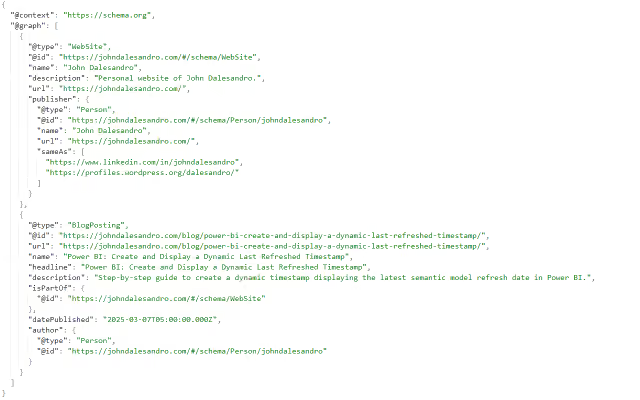
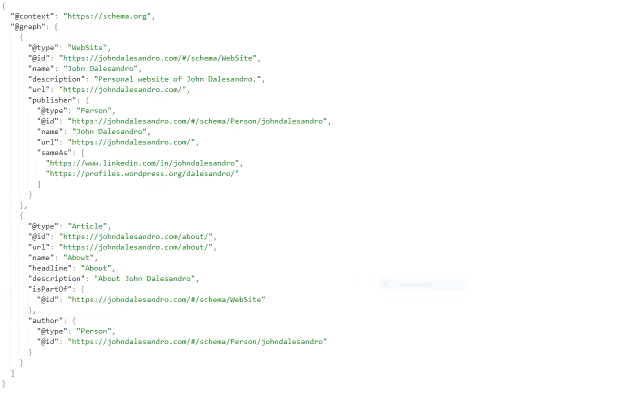
The structured data is correctly rendered in the <head> element of each page, with every entity linked by @id rather than duplicated. Inspecting the rendered HTML confirms that a blog post includes Person, WebSite, WebPage, BlogPosting, and BreadcrumbList entries, while a page includes the equivalent set with Article in place of BlogPosting.
The graph illustration above shows a simplified conceptual model of how the structured data entities relate to each other. The actual JSON-LD generated by this website is more detailed and includes additional properties required for real-world usage and validation. The screenshots below show the structured data output as rendered on the live website.
One related concern is Open Graph’s og:type meta tag, which should follow the same distinction as contentType. Use article for blog posts and other dated, time-sensitive content, and website for evergreen pages such as a homepage. The openGraphType constant shown above derives this automatically from contentType, so the two stay in sync without needing to set og:type separately on every page.
Validate the Structured Data
Rendering JSON-LD correctly in the page source is not the same as producing structured data Google will actually use. The next step is running the live page through Google Rich Results Test, which parses the markup the same way Google’s crawler does and reports whether the page is eligible for rich results.
If using schema types that are not eligible for Google rich results, the Schema Markup Validator can still verify that the JSON-LD is syntactically correct even though Google’s Rich Results Test ignores those types.
Enter the page URL (or paste the raw HTML for a page still in local development) and run the test. The result falls into one of three categories:
- Valid, with rich results detected: The tool lists which rich result types it found (for example,
ArticleorBreadcrumbs) and confirms all required fields are present. This is the target outcome. - Valid, with warnings: The markup is technically usable, but one or more recommended (not required) fields are missing. A common warning at this stage is a missing
imageon anArticleorBlogPostingentry. Google listsimageas a recommended, not required, property for these types, so leaving it out produces a warning rather than a blocking error. Warnings do not prevent a rich result from appearing, but resolving them tends to improve how the result is displayed. - Errors: A required field for the detected type is missing or malformed, such as a
datePublishedthat failed to parse. Errors typically prevent the rich result from being shown at all, though the page can still be indexed normally.
A frequent source of errors worth checking specifically: a datePublished or dateModified value that renders as a plain string instead of ISO 8601 (for example, Aug 28 2025 instead of 2025-08-28T00:00:00.000Z). This happens when a date value reaches the component as a raw string rather than a JavaScript Date object. The Rich Results Test will flag this as an invalid date rather than silently ignoring it, which makes it one of the easier issues to catch early.
Keep in mind that passing validation does not guarantee Google will use the structured data in search results. Eligibility means the markup is technically correct; whether Google displays a rich result remains an algorithmic decision. Search engines evaluate structured data alongside the visible page content and may ignore markup that is misleading, incomplete, or does not accurately represent what users see. The goal is to describe the content truthfully and consistently, not simply to maximize the amount of schema on a page.
NOTE: Re-run the Rich Results Test after every meaningful change to the generated structured data. Test at least one page of each
contentTypeused on the website (a blog post and a standalone page, at minimum), since the tool validates one URL at a time and issues on one page type will not surface on another.
Summary
By integrating structured data, an Astro website effectively communicates content types to search engines, potentially boosting SEO and enhancing discoverability.
Linking entities by @id instead of duplicating them, and including a breadcrumb trail, are both small additions that make the resulting graph meaningfully more useful to search engines than a set of disconnected objects. This flexible approach allows for WebSite, BlogPosting, and Article schemas tailored to each rendered page. Running the result through the Rich Results Test confirms whether the markup is actually eligible for rich results, rather than just assuming it from the rendered HTML.
With validated structured data in place, the website is better positioned for rich search features while providing search engines with a clearer understanding of every page.