Power Query: How to Retrieve Excel Defined Name Values
This article covers defining a named value in Excel and creating a reusable Power Query function to retrieve it, allowing specific data to be referenced from a workbook and used in queries for tasks like filtering or analysis.
Instructions
Step 1: Define a Named Value in Excel
- Select the cell containing the value to name in Excel.
- From the
Formulastab, clickName Manager. - In the
Name Managerdialog box, click theNewbutton. - In the
New Namedialog box:- In the
Namefield, enter a name for the cell (for example,REF_NAMED_RANGE_VALUE). - In the
Refers tofield, confirm or select the cell with the reference data.
- In the
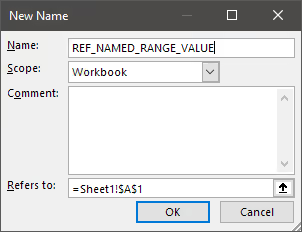
- Click the
OKbutton. The new name will appear in theName Manager.
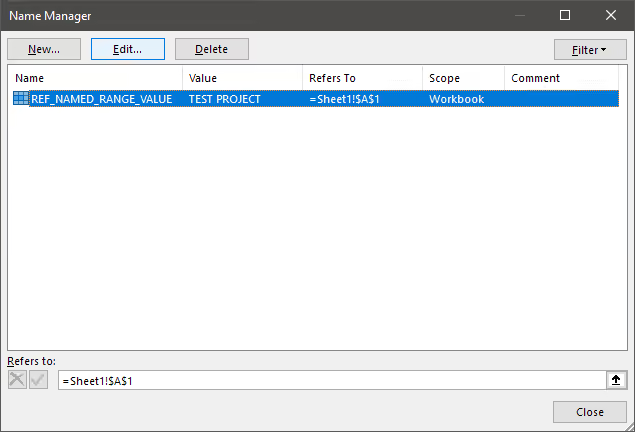
- Click the
Closebutton.
Now, when selecting the cell in Excel, the defined name will appear in the Name Box next to the Formula Bar.
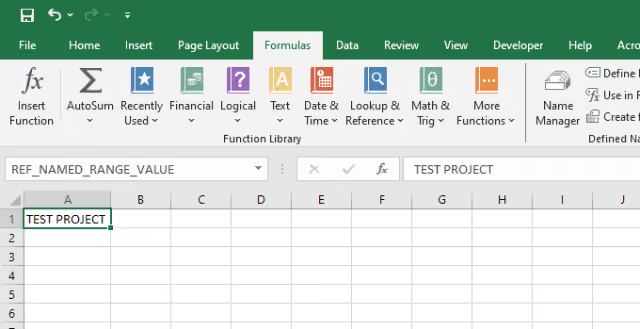
Step 2: Create a New Power Query Function
- From the
Hometab in Power Query, selectNew Source>Other Sources>Blank Query. This creates a new blank query. - From the
Hometab, clickAdvanced Editor. - Replace the default query with the following function:
let
  GetDefinedNameValue = (definedName) =>
    let
      name  = Excel.CurrentWorkbook(){[Name = definedName]}[Content],
      value = name{0}[Column1]
    in
      value
in
GetDefinedNameValue- Click the
Donebutton. - In the
Query Settingspane, underProperties, rename the query toGetDefinedNameValue. - Click
Close & Loadto exit Power Query.
Results
To test the function:
- From the
Queriespane in Power Query, selectGetDefinedNameValue. - A prompt will appear asking for a parameter. For
definedName, enterREF_NAMED_RANGE_VALUE. The function call will look like this:
= GetDefinedNameValue("REF_NAMED_RANGE_VALUE")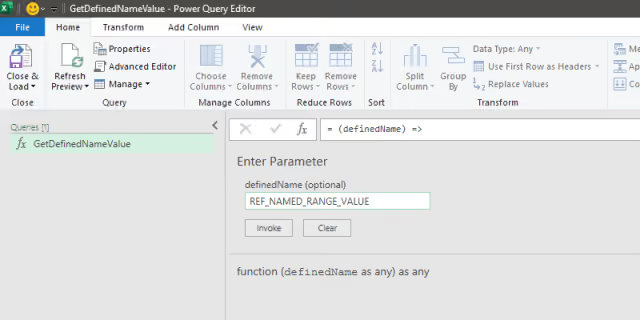
- Click the
Invokebutton. - The result of the function will appear as a new query named
Invoked Functionin theQueriespane, returning the valueTEST PROJECTas expected.
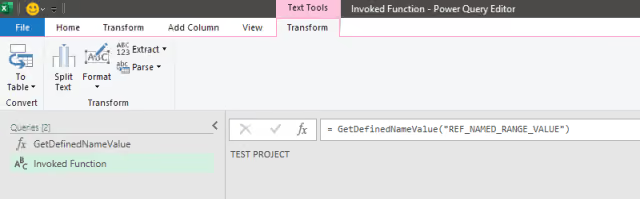
This function can now be used to easily pull specific reference values from an Excel workbook into other queries for filtering or other tasks.
Summary
This process defines named values in Excel and creates a reusable Power Query function to access them, making it possible to pull specific reference values into other queries without modifying the underlying query logic when the reference data changes. The result is more efficient and consistent data analysis.