Remove System Prefixes in SharePoint Lookup Columns
SharePoint lookup columns provide a simple way to surface related data from another list. They behave as expected until additional fields from the source list are included. At that point, SharePoint generates additional fields with names like LookupColumn:Field.
The key detail is that SharePoint creates actual columns for each additional lookup field and assigns them names using a default naming pattern, rather than view aliases or temporary labels.
How Additional Lookup Columns Work
Configuring a lookup column defines a relationship between two lists. When additional fields from the source list are included, SharePoint creates dependent lookup fields in the target list. These fields depend on the primary lookup column and display data from the corresponding source item. Each field is given a default name that combines the primary lookup column and the source field, such as LookupColumn:Field.
These dependent fields appear in List Settings as columns, and their display names can be changed independently of the lookup relationship. Their values remain tied to the corresponding item in the source list.
How to Remove the Prefix From a SharePoint Lookup Column
In this demonstration, the source list contains a series of Projects with an associated Title (Project Name) and Status.

Step 1: Create the Lookup Column
The setup process is standard.
Create a lookup column in the target list, point it to a source list, and select the primary value to display.
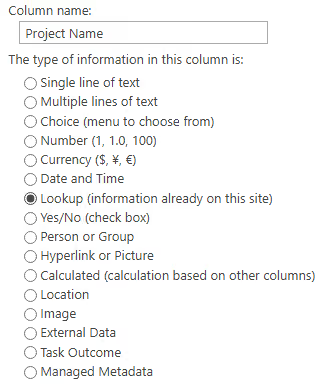
Additional fields can be enabled to include more data.
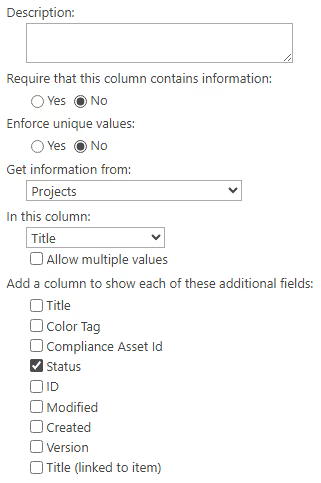
Once saved, SharePoint generates the dependent columns automatically. These fields appear with the prefixed naming pattern.
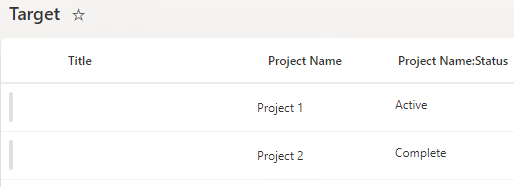
Step 2: Locate the Generated Fields
After creating the lookup column, go to List Settings and view the Columns section, where SharePoint lists the dependent lookup fields it generated automatically.
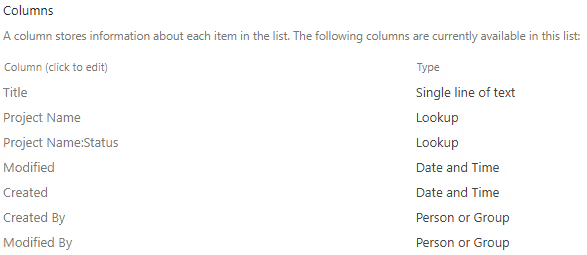
Step 3: Rename the Columns
Renaming is done directly in each field’s settings page.
Open List Settings and select a generated lookup field.
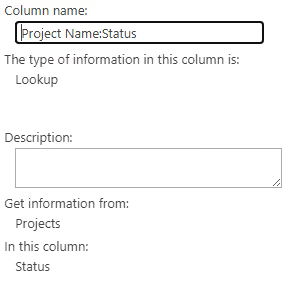
Update the Column name and save. For example, Project Name:Status can be renamed to Status or a clearer business label.
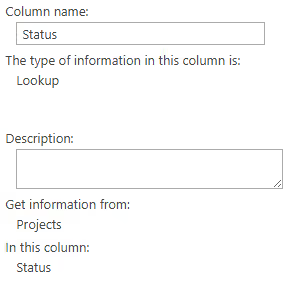
SharePoint immediately updates the display label across list views, forms, and most user-facing interfaces.
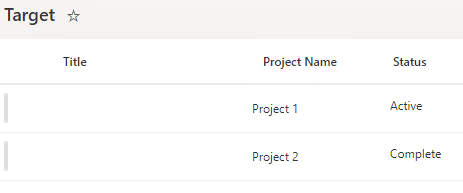
The lookup relationship remains intact because SharePoint relies on the internal field definition rather than the display name.
Internal Name vs. Display Name
Renaming only changes the display label. The internal name does not change.
A column shown as Status in the UI may still have an internal name like Lookup_x003a_Status. SharePoint continues to use internal names for integrations and backend operations.
This becomes visible in Power Automate and any tool that exposes raw field metadata. The UI may show a clean label while flows reference the original internal structure.
This mismatch is expected and unaffected by renaming.
NOTE: SharePoint does not support changing internal field names after creation. If an internal name must change, the column generally needs to be recreated.
Impact on Power Automate and APIs
The distinction between display and internal names is especially important outside SharePoint.
Power Automate, REST APIs, Microsoft Graph, and other integrations may use the column’s internal name even when the SharePoint UI displays a different label.
Deleting and recreating lookup columns introduces another complication. Even if the new column uses the same visible name, SharePoint generates a new internal field definition. Existing flows, JSON formatting, REST queries, and Power BI models may need to be updated or can break because they reference the original identifier.
For this reason, lookup schema changes are safer early in a project, before downstream dependencies build up.
Why Some Additional Fields Are Not Available
Additional lookup fields work best with simple scalar column types such as text, number, date, currency, and yes/no values. More complex types such as multi-select choices and certain calculated fields may not be available as additional lookup fields, depending on the field configuration and service. When complex data must be surfaced through lookups, a Power Automate process is often used to flatten the value into text first.
Troubleshooting and Edge Cases
Issues with renamed lookup fields typically surface after setup.
If newly created lookup fields do not immediately appear in List Settings, refresh the page and check again.
In larger lists, updates from the source list may not appear immediately in dependent fields due to indexing or rendering delays.
Renaming the parent lookup column does not update dependent fields. The original prefix remains unless updated manually.
Results
After renaming dependent lookup fields, SharePoint lists become easier to read and maintain. Views, forms, and reports no longer show the default prefixed labels.
The lookup relationship remains unchanged. Data stays synchronized, filtering and sorting continue to work, and no structural changes are required.
Summary
SharePoint lookup columns are more flexible than they first appear, but additional fields introduce unwanted default naming.
Because these generated fields are real columns, not static labels, renaming is a simple cleanup step.