Excel VBA: Automate E-mail Content Extraction From Outlook
Structured Outlook e-mails often contain information that must be manually copied into Excel. Excel VBA can automate this process by extracting values using both text-based parsing and HTML table-based methods. Automating the extraction process with VBA reduces transcription errors, improves consistency, and reduces manual effort compared with copying and pasting information from each e-mail.
Text-based extraction uses the Replace and Split functions, while HTML table-based data is extracted using HTML object library functions.
Design Notes
Template Assumptions
This implementation assumes each e-mail contains a single table, labels appear in the first column, values appear in the second column, and the e-mail template remains consistent.
The code connects to Outlook and accesses a subfolder named Automation in the default inbox, which contains the structured e-mails to be processed. It loops through each e-mail in the subfolder, processing only e-mails with subjects containing Template Email Subject. Isolating automation e-mails into a dedicated folder reduces the number of Outlook items that must be inspected, improving performance and avoiding accidental processing of unrelated messages.
Text and HTML Extraction
For text-based information extraction, the code replaces specific phrases (The account for and has been created.) in the e-mail body with ####################. This delimiter makes it easier to extract the text between them. A delimiter consisting of repeated # characters is unlikely to appear naturally in the message, reducing the risk of accidental matches during parsing. For example, the modified body would look like this:
#################### <Full Name> ####################Since the e-mail template is fixed and predictable, using Replace and Split is simpler, faster, and easier to maintain than introducing regular expressions. Regex is better suited to variable or loosely structured text, whereas fixed templates benefit from straightforward string manipulation. The code uses the Split function to extract the text between these delimiters and removes line feeds, form feeds, and carriage returns using the Trim and Replace functions. The cleaned text is then written to Column A of Sheet1.
Although Outlook exposes both plain-text and HTML representations, table structure is not reliably preserved in the plain-text body. When the e-mail contains structured tables, the HTML representation generally preserves the table structure, while the plain-text body typically contains only the rendered text. For HTML table-based extraction, the code references the HTML table tag in the e-mail body using getElementsByTagName. It loops through the table rows and extracts data from the second column, which contains the values associated with each label.
Binding and Error Handling
On Error Resume Next is scoped narrowly around HTML table and cell access because Outlook-generated HTML may contain unexpected structures, such as missing tables, missing cells, merged cells, or malformed elements. Normal error handling is restored immediately after each potentially problematic operation.
Testing and Customization
This code has been tested with Microsoft Office Professional Plus 2019 using the described e-mail template and Outlook configuration. It includes hard-coded values that must be updated for different e-mail templates and configurations, such as the Excel worksheet name (Sheet1), and the Outlook subfolder name (Automation) and location.
Structured E-mail Template
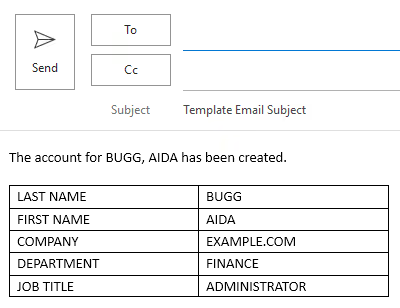
Automation depends on consistent, structured data. Each e-mail has the subject Template Email Subject and the body follows this format: The account for <Full Name> has been created., where <Full Name> represents the name associated with the created account. The e-mail body also includes a structured table with user details like Last Name, First Name, Company, Department, and Job Title.
The macro extracts the Full Name from the e-mail body and adds it to an Excel worksheet. It then extracts additional user details from the structured table and adds this information to the Excel worksheet.
Outlook Configuration
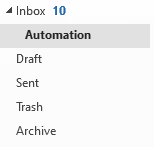
In Outlook, create a subfolder named Automation within the default Inbox to collect relevant e-mails. An Outlook rule can be used to automatically move these e-mails into the subfolder. In this example, the subfolder name Automation and its location in the default inbox are hard-coded. If the folder is created elsewhere, the code will need to be adjusted accordingly.
Enable Libraries
This function requires the Microsoft Outlook 16.0 Object Library (used to access and manipulate Outlook) and Microsoft HTML Object Library (used to traverse structured HTML) to be enabled.
- From the
Developertab in Microsoft Excel, clickVisual Basic. - Once the
Visual Basic for Applicationswindow opens, go to theToolsmenu and selectReferences…. - From the
Referencesdialog box, check/enableMicrosoft Outlook 16.0 Object Library. - From the
Referencesdialog box, check/enableMicrosoft HTML Object Library. - Click the
OKbutton.
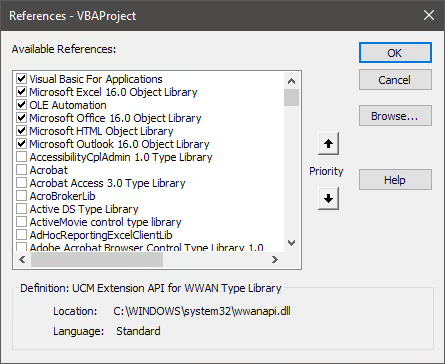
Because the Outlook and HTML libraries are referenced and the variables use explicit library types, the code benefits from early binding during development. This provides IntelliSense and compile-time validation for most declared objects, though HtmlElementTable is populated via a runtime call to getElementsByTagName and so resolves through late binding despite its early-bound declaration.
NOTE: The Microsoft HTML Object Library is built on the Trident rendering engine used by Internet Explorer. Because Internet Explorer has been retired, this library’s long-term availability on newer Windows and Office installations is not guaranteed. Environments without the legacy engine installed may not expose this reference, in which case an alternative parsing approach would be required.
Source Code
The VBA code is added directly to ThisWorkbook within the Visual Basic for Applications window.
- From the
Developertab in Microsoft Excel, clickVisual Basic. - Once the
Visual Basic for Applicationswindow opens, selectThisWorkbookfrom theProject Explorerpane. - Add the following code.
The procedure follows a simple sequence: initialize Excel and Outlook objects, locate the target Outlook folder, iterate through matching e-mails, extract the name from the message body, parse the HTML table, and write the extracted values to the worksheet. Each matching e-mail is processed as a single record.
Option Explicit

Public Sub ExtractDetailsFromOutlookFolderEmails()
  On Error GoTo ErrorHandler

  Dim OlApp As Outlook.Application
  Dim OlNamespace As Outlook.Namespace
  Dim OlFolder As Outlook.Folder
  Dim OlItem As Object
  Dim MailItem As Outlook.MailItem
  Dim OlItemBody As String

  Dim OlHtml As MSHTML.HTMLDocument
  Dim HtmlElementTable As MSHTML.IHTMLTable

  Dim TableRowIndex As Long
  Dim ExcelRow As Long
  Dim ExcelCol As Long

  Dim WsList As Worksheet
  Dim FullName As String
  Dim CellValue As String

  Set WsList = ThisWorkbook.Sheets("Sheet1")

  Set OlApp = New Outlook.Application
  Set OlNamespace = OlApp.GetNamespace("MAPI")

  'Retrieve the Outlook folder containing automation e-mails.
  Set OlFolder = OlNamespace.GetDefaultFolder(olFolderInbox) _
    .Folders("Automation")

  ExcelRow = 1

  For Each OlItem In OlFolder.Items
    'Ignore non-mail items that may exist in the Outlook folder.
    If TypeOf OlItem Is Outlook.MailItem Then
      Set MailItem = OlItem

      If InStr(MailItem.Subject, "Template Email Subject") > 0 Then
        ExcelCol = 1

        'Extract the full name from the e-mail body using delimiters.
        OlItemBody = Replace(MailItem.body, _
          "The account for", _
          "####################")

        OlItemBody = Replace(OlItemBody, _
          "has been created.", _
          "####################")

        FullName = Trim( _
          Replace( _
            Replace( _
              Replace( _
                Split(OlItemBody, "####################")(1), _
                Chr(10), ""), _
              Chr(12), ""), _
            Chr(13), ""))

        WsList.Cells(ExcelRow, ExcelCol).Value = FullName

        'Parse the HTML body to extract values from the table.
        Set OlHtml = New MSHTML.HTMLDocument
        OlHtml.body.innerHTML = MailItem.HTMLBody

        'The template contains one table with labels in the
        'first column and values in the second column.
        On Error Resume Next
        Set HtmlElementTable = _
          OlHtml.getElementsByTagName("table")(0)
        On Error GoTo ErrorHandler

        If Not HtmlElementTable Is Nothing Then
          For TableRowIndex = 0 To _
              HtmlElementTable.Rows.Length - 1

            'Reset the value before reading each cell.
            CellValue = vbNullString

            'The first column contains labels; extract column two.
            On Error Resume Next
            CellValue = HtmlElementTable.Rows(TableRowIndex) _
              .Cells(1).innerText
            On Error GoTo ErrorHandler

            If Len(Trim(CellValue)) > 0 Then
              ExcelCol = ExcelCol + 1
              WsList.Cells(ExcelRow, ExcelCol).Value = _
                Trim(CellValue)
            End If

          Next TableRowIndex
        End If

        ExcelRow = ExcelRow + 1
      End If
    End If
  Next OlItem

  Exit Sub

ErrorHandler:
  MsgBox "Error extracting details: " & Err.Description

End Sub
Execute Procedure
- From the
Developertab in Microsoft Excel, clickMacros. - The
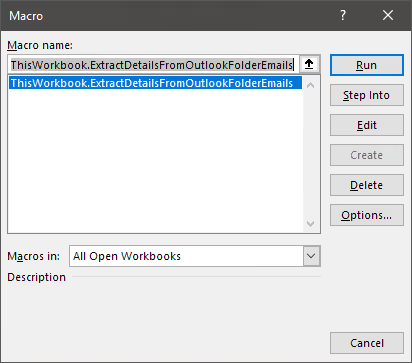
Macrodialog box opens. SelectExtractDetailsFromOutlookFolderEmails. - Click the
Runbutton to execute the procedure.
Results
After running the procedure, the worksheet is filled with information from both the text-based and table-based methods. Although this example uses a single e-mail, the procedure processes every matching e-mail in the Outlook folder.

Summary
By combining simple string manipulation with HTML table parsing, this approach automates extraction of structured Outlook e-mail content into Excel while minimizing manual effort. Because the implementation relies on a consistent e-mail template, it remains straightforward to maintain and adapt for similar business workflows.