Concatenate Excel Ranges, Arrays, and Values Without TEXTJOIN Using VBA
Office 2019 and Microsoft 365 subscriptions include a helpful function called TEXTJOIN. It joins text from ranges, arrays, or individual values into a single cell. This function streamlines what would otherwise require manually concatenating values and handling delimiters.
However, without access to TEXTJOIN, the VBA user-defined function (UDF) described in this article provides an alternative. It mimics much of the TEXTJOIN functionality and adds one feature: it lets the caller specify whether a two-dimensional range or array is joined row by row or column by column, a distinction TEXTJOIN itself does not offer.
Comparison With VBA Join
VBA includes a built-in Join function, but it only accepts a one-dimensional array as its source. A Range object or a two-dimensional array must be converted before Join can use it, and Join has no option to skip empty elements or control row-versus-column ordering. ConcatenateRange handles ranges, one-dimensional arrays, and two-dimensional arrays directly, with configurable empty-value handling and orientation, which removes the need for that conversion step.
Instructions
Create a New VBA Module
- From the
Developertab in Excel, clickVisual Basic. - In the
Visual Basic for Applicationswindow, go toInsert>Module. - Paste the following code into the new module and close the editor.
Option Explicit

Function ConcatenateRange( _
  delimiter As String, _
  ignoreEmpty As Boolean, _
  rowPriority As Boolean, _
  ParamArray data() _
) As Variant

  Dim arrData() As Variant
  Dim lParamIndex As Long
  Dim vItem As Variant
  Dim sResult As String: sResult = ""

  For lParamIndex = LBound(data) To UBound(data)
    If IsObject(data(lParamIndex)) Or IsArray(data(lParamIndex)) Then
      If IsObject(data(lParamIndex)) Then
        If data(lParamIndex).Cells.Count = 1 Then
          ReDim arrData(1 To 1, 1 To 1)
          arrData(1, 1) = data(lParamIndex).Value2
        Else
          arrData = data(lParamIndex).Value2
        End If
      Else
        arrData = data(lParamIndex)
      End If

      If rowPriority Then
        arrData = Application.WorksheetFunction.Transpose(arrData)
      End If

      For Each vItem In arrData
        If (ignoreEmpty And Not IsEmpty(vItem)) Or (Not ignoreEmpty) Then
          sResult = sResult & vItem & delimiter
        End If

        If Len(sResult) > 32767 Then
          ConcatenateRange = CVErr(xlErrValue)
          Exit Function
        End If
      Next vItem
    Else
      If (ignoreEmpty And Not IsEmpty(data(lParamIndex))) _
        Or (Not ignoreEmpty) Then
        sResult = sResult & data(lParamIndex) & delimiter
      End If

      If Len(sResult) > 32767 Then
        ConcatenateRange = CVErr(xlErrValue)
        Exit Function
      End If
    End If
  Next lParamIndex

  If Len(sResult) >= Len(delimiter) Then
    sResult = Left(sResult, Len(sResult) - Len(delimiter))
  End If

  ConcatenateRange = sResult
End Function
Usage
The ConcatenateRange(delimiter, ignoreEmpty, rowPriority, data1, [data2], …) function joins values from ranges, arrays, and individual cells into a single string, separated by the specified delimiter.
Parameters:
delimiter(required): Text that separates each value. It can be empty (""), a string (for example,", "), or a cell reference. Numbers are treated as text.ignoreEmpty(required): IfTRUE, the function skips values for which VBA’sIsEmptyfunction returnsTRUE.rowPriority(required): IfTRUE, joins values by row (left to right). IfFALSE, joins values by column (top to bottom).data1(required): The first value, range, or array to concatenate.[data2, ...](optional): Additional values, ranges, or arrays to include.
Results
All results from the following examples are displayed in the screenshot below.
Example 1: TEXTJOIN (for Comparison)
This example is used as a baseline to compare the results from ConcatenateRange.
=TEXTJOIN(", ",TRUE,E1:F11,{"k",11;"l",12;"m",13;"n",14},"o",15,E13)Example 2: ConcatenateRange (Row Priority)
This example demonstrates that the result from ConcatenateRange matches the result from TEXTJOIN with the same arguments.
=ConcatenateRange(", ", TRUE, TRUE,E1:F11,{"k",11;"l",12;"m",13;"n",14},"o",15,E13)Example 3: ConcatenateRange (Column Priority)
When compared with Example 2, column priority sequences the resulting string by each entry in a column first.
=ConcatenateRange(", ", TRUE, FALSE,E1:F11,{"k",11;"l",12;"m",13;"n",14},"o",15,E13)Example 4: ConcatenateRange (Row Priority, Include Empty)
Similar result as Example 2 except empty values are included in the result.
=ConcatenateRange(", ", FALSE, TRUE,E1:F11,{"k",11;"l",12;"m",13;"n",14},"o",15,E13)Example 5: ConcatenateRange (Row Priority, No Delimiter)
The result is also similar to Example 2, except no delimiter is used to separate values.
=ConcatenateRange("", TRUE, TRUE,E1:F11,{"k",11;"l",12;"m",13;"n",14},"o",15,E13)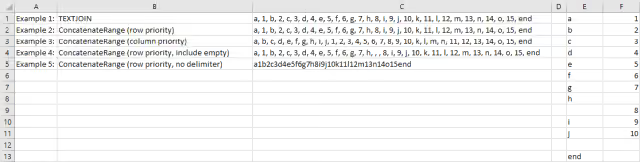
Known Limitations
- The result string cannot exceed 32,767 characters (Excel’s cell limit).
- The function does not handle Excel error values as text. If any source value is an Excel error value, the function returns an error.
- The function does not support 3D ranges (across multiple sheets).
Summary
Without access to TEXTJOIN, the ConcatenateRange user-defined function is a practical alternative. It provides flexibility with delimiters, empty values, and data layout, and it returns #VALUE! rather than an incomplete or truncated result if the joined string would exceed Excel’s 32,767-character cell limit. A few lines of VBA streamline text concatenation across older versions of Excel.