How to Count Cells by Background Color in Excel With VBA
Excel does not have a built-in worksheet function for counting cells based on background color (also called fill color or interior color). However, this task can be accomplished using user-defined functions (UDFs) in VBA.
Background colors are often applied manually to flag or categorize data, such as marking overdue items, highlighting exceptions during a manual review, or color-coding rows in a tracking sheet.
GetBackgroundColorIndex and CountBackgroundColorIndex work with colors applied manually through the fill color picker or programmatically by assigning Interior.ColorIndex in VBA.
NOTE:
Interior.ColorIndexuses Excel’s legacy 56-color indexed palette. Colors chosen from the modern theme palette or a custom RGB picker generally do not correspond to a useful indexed value, andGetBackgroundColorIndexorCountBackgroundColorIndexwill not reliably match them.
To accommodate a broad spectrum of fill colors, GetBackgroundColor and CountBackgroundColor work with Interior.Color instead. Interior.Color stores the cell’s color value as a Long value and matches any fill color regardless of how it was chosen.
NOTE: This
Longvalue is encoded in BGR byte order rather than RGB. It is typically constructed or decoded using VBA’sRGB()function and is not interpreted directly as a straightforward RGB number.
Instructions
Create a New VBA Module
- From the
Developertab in Excel, clickVisual Basic. - In the
Visual Basic for Applicationswindow, go toInsert>Module. - Paste the following code into the new module and close the editor.
Option Explicit

Function GetBackgroundColorIndex(rngCell As Range) As Variant
  If IsObject(rngCell) Then
    If rngCell.Cells.Count = 1 Then
      GetBackgroundColorIndex = rngCell.Interior.ColorIndex
      Exit Function
    End If
  End If

  GetBackgroundColorIndex = CVErr(xlErrRef)
End Function

Function CountBackgroundColorIndex( _
  ByVal colorIndex As Long, _
  ParamArray dataRanges() _
) As Long

  Dim paramIndex As Long
  Dim cell As Variant
  Dim matchCount As Long: matchCount = 0
  Dim checkedRange As Range

  For paramIndex = LBound(dataRanges) To UBound(dataRanges)
    If IsObject(dataRanges(paramIndex)) Then
      Set checkedRange = Intersect( _
        dataRanges(paramIndex), _
        dataRanges(paramIndex).Parent.UsedRange _
      )

      If Not checkedRange Is Nothing Then
        For Each cell In checkedRange
          If cell.Interior.ColorIndex = colorIndex Then
            matchCount = matchCount + 1
          End If
        Next cell
      End If
    End If
  Next paramIndex

  CountBackgroundColorIndex = matchCount
End Function

Function GetBackgroundColor(rngCell As Range) As Variant
  If IsObject(rngCell) Then
    If rngCell.Cells.Count = 1 Then
      GetBackgroundColor = rngCell.Interior.Color
      Exit Function
    End If
  End If

  GetBackgroundColor = CVErr(xlErrRef)
End Function

Function CountBackgroundColor( _
  ByVal color As Long, _
  ParamArray dataRanges() _
) As Long

  Dim paramIndex As Long
  Dim cell As Variant
  Dim matchCount As Long: matchCount = 0
  Dim checkedRange As Range

  For paramIndex = LBound(dataRanges) To UBound(dataRanges)
    If IsObject(dataRanges(paramIndex)) Then
      Set checkedRange = Intersect( _
        dataRanges(paramIndex), _
        dataRanges(paramIndex).Parent.UsedRange _
      )

      If Not checkedRange Is Nothing Then
        For Each cell In checkedRange
          If cell.Interior.Color = color Then
            matchCount = matchCount + 1
          End If
        Next cell
      End If
    End If
  Next paramIndex

  CountBackgroundColor = matchCount
End Function
Usage
GetBackgroundColorIndex
The GetBackgroundColorIndex(range1) function returns the color index of the specified cell’s background color.
Parameters:
range1(required): A single cell to evaluate.
CountBackgroundColorIndex
The CountBackgroundColorIndex(colorIndex, range1, [range2], …) function counts the number of cells matching the specified color index within one or more ranges.
Parameters:
colorIndex(required): Numeric value of the desired color index.range1(required): A single cell or a range to evaluate.[range2, …](optional): Additional ranges to include.
GetBackgroundColor
The GetBackgroundColor(range1) function returns the Long color value of the specified cell’s background color.
Parameters:
range1(required): A single cell to evaluate.
CountBackgroundColor
The CountBackgroundColor(color, range1, [range2], …) function counts the number of cells matching the specified Long color value within one or more ranges.
Parameters:
color(required):Longvalue of the desired color.range1(required): A single cell or a range to evaluate.[range2, …](optional): Additional ranges to include.
Build a Reference Palette
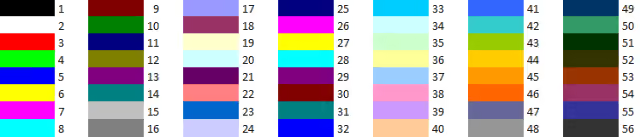
Excel’s indexed color palette runs from 1 to 56. Rather than looking up a chart, the following macro builds a live reference directly in a worksheet, filling a range of cells with each palette color alongside its ColorIndex number.
This procedure takes no parameters, so it can be pasted into the same standard module as GetBackgroundColorIndex and CountBackgroundColorIndex and run directly from the Macro dialog (Alt+F8).
Sub ListColorIndexPalette()
  Dim colorIndex As Long
  Dim outputRange As Range

  For colorIndex = 1 To 56
    Set outputRange = Worksheets("Sheet1").Cells(colorIndex, 10)
    outputRange.Interior.ColorIndex = colorIndex
    outputRange.Offset(0, 1).Value = colorIndex
  Next colorIndex
End Sub
Running this fills J1:J56 on Sheet1 with each palette color and writes the corresponding ColorIndex number in column K.
Results
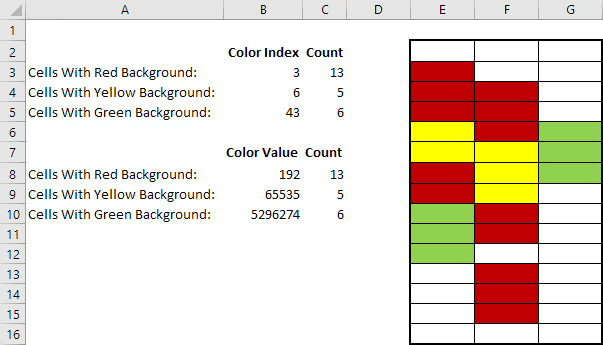
After filling cells in E2:G16 with red, yellow, or green, the following examples demonstrate how the functions work. The ColorIndex values used below correspond to Excel’s indexed color palette.
NOTE:
ColorIndexdoes not require an exact match to one of the 56 legacy palette colors. When a cell’s fill color falls outside that palette, Excel maps it to the nearest indexed color rather than failing. This is whyGetBackgroundColorIndexcan return a valid index like3for a cell whose exactColorvalue, as returned byGetBackgroundColor, is not pure red.
Example 1: Red Cells (#C00000)
For color index:
- The formula
=GetBackgroundColorIndex(E3)returns the value3which corresponds to the color index for the red used in this example. - The formula
=CountBackgroundColorIndex(3, E2:G16)returns the value13for the 13 red cells.
For color value:
- The formula
=GetBackgroundColor(E3)returns the value192, which is the color value for the red used in this example. - The formula
=CountBackgroundColor(192, E2:G16)returns the value13for the 13 red cells.
Example 2: Yellow Cells (#FFFF00)
For color index:
- The formula
=GetBackgroundColorIndex(E6)returns the value6which corresponds to the color index for the yellow used in this example. - The formula
=CountBackgroundColorIndex(6, E2:G16)returns the value5for the 5 yellow cells.
For color value:
- The formula
=GetBackgroundColor(E6)returns the value65535, which is the color value for the yellow used in this example. - The formula
=CountBackgroundColor(65535, E2:G16)returns the value5for the 5 yellow cells.
Example 3: Green Cells (#92D050)
For color index:
- The formula
=GetBackgroundColorIndex(G6)returns the value43which corresponds to the color index for the green used in this example. - The formula
=CountBackgroundColorIndex(43, E2:G16)returns the value6for the 6 green cells.
For color value:
- The formula
=GetBackgroundColor(G6)returns the value5296274, which is the color value for the green used in this example. - The formula
=CountBackgroundColor(5296274, E2:G16)returns the value6for the 6 green cells.
Known Limitations
Although both counting functions limit each supplied range to the worksheet’s UsedRange before checking individual cells, avoid passing whole-column references (for example, A:A) as arguments in large workbooks. Both functions check each cell individually, and large used ranges (especially whole-column references with data) can significantly slow performance or cause Excel to freeze. If the used range is mostly empty, performance should remain acceptable.
Interior.ColorIndex reads the color applied directly to a cell, not the color displayed by conditional formatting. To count cells colored by a conditional formatting rule, use DisplayFormat.Interior.ColorIndex instead.
NOTE:
DisplayFormatis only available in VBA and cannot be used in worksheet UDFs. It must be called from a macro orSubprocedure.
Excel does not treat a manual fill-color change as a recalculation trigger. If cell colors are changed after the functions have already returned a result, the displayed values will not update automatically. A manual recalculation with Ctrl+Alt+F9, which forces a full recalculation regardless of dependency tracking, refreshes the results.
Count Conditional Formatting Colors
DisplayFormat requires a calculation context that a worksheet UDF does not have, so accessing it from one raises a runtime error. The Sub procedure below works around this by reading the color through DisplayFormat.Interior.ColorIndex, and accepts the target color, range, and output cell as parameters so it can be reused without editing the code each time.
Paste the procedure into the ThisWorkbook code module rather than a standard module. From the Microsoft Visual Basic for Applications editor, ThisWorkbook appears under Microsoft Excel Objects in the Project Explorer. Because the procedure lives in ThisWorkbook rather than a standard module, a call to it must be qualified with ThisWorkbook, since an unqualified call will not resolve. The procedure also will not appear in the Macro dialog (Alt+F8), since Excel only lists macros with no parameters there. Run it instead from the VBA Immediate Window (Ctrl+G) with a qualified call, or from another Sub in the project.
Sub CountConditionalFormatColorIndex( _
  ByVal targetColorIndex As Long, _
  ByVal dataRange As Range, _
  ByVal outputCell As Range _
)
  Dim cell As Range
  Dim matchCount As Long: matchCount = 0

  For Each cell In dataRange
    If cell.DisplayFormat.Interior.ColorIndex = targetColorIndex Then
      matchCount = matchCount + 1
    End If
  Next cell

  outputCell.Value = matchCount
End Sub
The procedure is called from another Sub or the Immediate Window as demonstrated below and not from a worksheet formula.
Call ThisWorkbook.CountConditionalFormatColorIndex( _
  3, _
  Worksheets("Sheet1").Range("E2:G16"), _
  Worksheets("Sheet1").Range("I2") _
)
The ranges are qualified with Worksheets("Sheet1") rather than left unqualified, since an unqualified Range call resolves against whichever sheet is active at the time and could silently target the wrong sheet.
This call counts conditionally formatted cells in E2:G16 with color index 3 and writes the result to I2. Unlike CountBackgroundColorIndex, this procedure must be triggered manually, either by running it directly from the Immediate Window, calling it from another Sub, or calling it from a Worksheet_Calculate or Worksheet_Change event, since it cannot recalculate as part of normal formula evaluation.
The same restriction on DisplayFormat applies to RGB colors. The following variant reads the color through DisplayFormat.Interior.Color instead, for conditionally formatted colors that do not correspond to an indexed value.
Sub CountConditionalFormatColor( _
  ByVal targetColor As Long, _
  ByVal dataRange As Range, _
  ByVal outputCell As Range _
)
  Dim cell As Range
  Dim matchCount As Long: matchCount = 0

  For Each cell In dataRange
    If cell.DisplayFormat.Interior.Color = targetColor Then
      matchCount = matchCount + 1
    End If
  Next cell

  outputCell.Value = matchCount
End Sub
Summary
Although Excel does not natively support counting by background color, these simple VBA solutions provide an effective workaround. GetBackgroundColorIndex and CountBackgroundColorIndex provide practical tools for working with color-coded data in Excel, and GetBackgroundColor and CountBackgroundColor extend that support to custom RGB colors. CountConditionalFormatColorIndex and CountConditionalFormatColor handle conditionally formatted colors for indexed and RGB colors respectively. Use these tools with care in large data sets for best results.