How to Use Regular Expressions in Excel for Parsing Substrings With VBA
Parsing substrings from Excel cell values can be challenging, especially when the value or pattern is unclear. It often requires complex combinations of functions like SEARCH, FIND, LEFT, RIGHT, and MID. The result is often hard to read and may not work for all cell values, leading to manual cleanup. It would be much easier if SEARCH or FIND supported regular expressions by default.
This article enables Microsoft VBScript Regular Expressions and creates a custom VBA function to use in worksheet formulas for matching regular expression patterns and returning the matched substring.
NOTE: Microsoft 365 Excel includes built-in regular expression functions. Since Microsoft Office Professional Plus 2019 lacks these functions, this example uses the VBA function below as an alternative solution. For reference, the built-in functions are:
REGEXTESTtests whether a string matches a regular expression and returnsTRUEorFALSE.REGEXEXTRACTextracts text from a string based on a regular expression, returning the first match, all matches, or capturing groups from the first match.REGEXREPLACEsearches for a regular expression pattern in the supplied text and replaces it with different text.
Instructions
Step 1: Enable Microsoft VBScript Regular Expressions
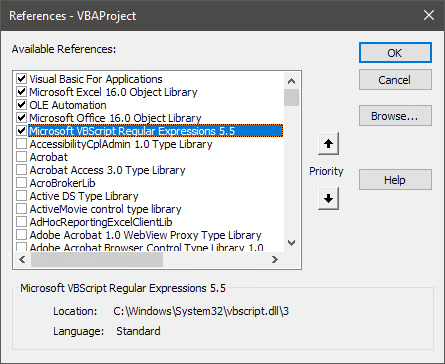
To use regular expressions for parsing a cell value, enable Microsoft VBScript Regular Expressions 5.5. If this workbook is opened on another computer, the Microsoft VBScript Regular Expressions 5.5 reference must be available and enabled there as well.
- From the
Developertab in Microsoft Excel, clickVisual Basic. - The
Microsoft Visual Basic for Applicationswindow is displayed. - Click the
Toolsmenu followed byReferences…. - The
Referencesdialog box is displayed. - Enable the
Microsoft VBScript Regular Expressions 5.5checkbox. - Click the
OKbutton.
Step 2: Create VBA Function
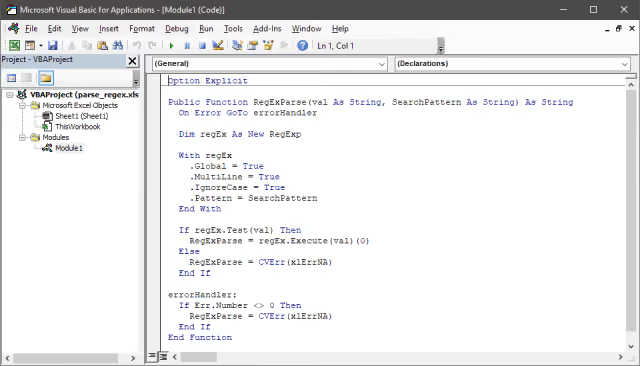
After enabling the regular expression reference, add a new module to the workbook (if one does not already exist). The code will not work if added directly to a worksheet object.
- Return to the
Microsoft Visual Basic for Applicationswindow. - Click the
Insertmenu followed byModule. - Add the following code to the module.
- Close the
Microsoft Visual Basic for Applicationswindow.
Option Explicit

Public Function RegExParse(val As String, SearchPattern As String) As String
  On Error GoTo errorHandler

  Dim regEx As New RegExp

  With regEx
    .Global = True
    .MultiLine = True
    .IgnoreCase = True
    .Pattern = SearchPattern
  End With

  If regEx.Test(val) Then
    RegExParse = regEx.Execute(val)(0)
  Else
    RegExParse = CVErr(xlErrNA)
  End If

errorHandler:
  If Err.Number <> 0 Then
    RegExParse = CVErr(xlErrNA)
  End If
End Function
Results
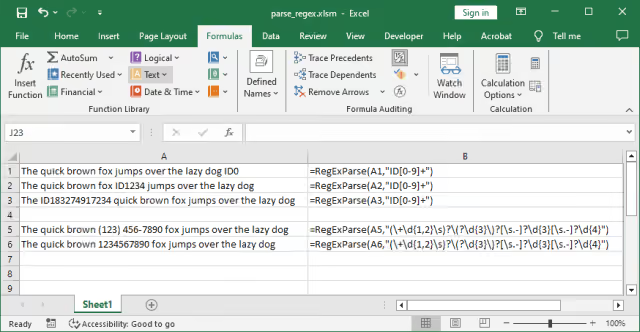
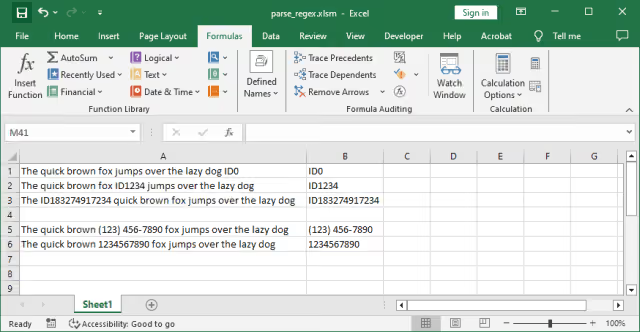
In Excel, the new function can then be used in formulas, such as =RegExParse(A1, "ID[0-9]+"). This formula returns a substring from cell A1 that matches the pattern ID[0-9]+ (for example, ID0, ID1234, ID183274917234). An example is also provided for extracting more complex patterns, such as United States telephone numbers.
Summary
Using regular expressions in Excel simplifies parsing substrings, eliminating the need for complex formulas. Enabling Microsoft VBScript Regular Expressions allows extraction of specific patterns from cell values. This approach streamlines the process and reduces the need for manual cleanup.