Excel VBA: Retrieving Outlook Address Book Values
Retrieving Outlook address book information using Excel VBA is more complicated than it first appears because Exchange users and local contacts expose different object models. This function handles both cases through a single reusable worksheet function, making it useful for automatically populating or validating contact information in Excel workbooks directly from Outlook.
This function is intended for the Outlook desktop application and works with both Exchange users and local Outlook contacts exposed through the Outlook Object Model. It does not retrieve information from Outlook on the web, Microsoft Graph, or other external directory services.
Design Notes
Several implementation details are worth explaining.
Encapsulating the Outlook lookup logic into a single reusable worksheet function avoids duplicating the resolution and error-handling logic for every property that might be requested.
The function first resolves the supplied recipient in Outlook, then determines whether the entry represents an Exchange user or a local Outlook contact.
Outlook does not expose all address book entries through the same object type. Exchange recipients expose an ExchangeUser object, whereas local contacts expose a ContactItem. Because those types expose different properties, the function must determine which object Outlook returned before reading the requested value.
The function uses Select Case rather than Switch to select the property to return. VBA’s Switch function evaluates every expression in its argument list before returning a value, even the ones it does not end up returning. In this function, that would mean the Country/Region lookup runs on every call regardless of which property was requested, and if that property is not set on the given contact or Exchange user, the resulting error would cause the entire call to fail, even when the actually-requested property was available. Select Case evaluates only the matching branch, avoiding this.
Alias behaves differently for local contacts than for Exchange users. Exchange users return their system-assigned Exchange alias, while local contacts return .NickName, a free-text field with no relationship to the Exchange alias concept.
Enable Microsoft Outlook Object Library
This function requires the Microsoft Outlook 16.0 Object Library. The version number varies depending on the installed version of Microsoft Office/Outlook.
NOTE: Depending on the Outlook security configuration or organizational policies in place, Excel automation may trigger security prompts when accessing address book information.
- From the
Developertab in Microsoft Excel, clickVisual Basic. - Once the
Visual Basic for Applicationswindow opens, go to theToolsmenu and selectReferences…. - From the
Referencesdialog box, enableMicrosoft Outlook 16.0 Object Library. - Click the
OKbutton.
Create a New VBA Module
Store the function in a standard VBA module. If the workbook does not already contain one, create a new module before pasting the code. If the code is added directly to a worksheet object, then it will not work properly.
- From the
Developertab in Excel, clickVisual Basic. - In the
Visual Basic for Applicationswindow, go toInsert>Module. - Paste the following code into the new module and close the editor.
Option Explicit

Public Function GetOutlookAddressBookProperty( _
  ByVal alias As String, _
  ByVal propertyName As String _
) As Variant

  On Error GoTo ErrorHandler

  Dim olApp As Outlook.Application
  Dim olNameSpace As Namespace
  Dim olRecipient As Outlook.Recipient
  Dim olResolvedEntry As Outlook.AddressEntry
  Dim olExchUser As Outlook.ExchangeUser

  Set olApp = CreateObject("Outlook.Application")
  Set olNameSpace = olApp.GetNamespace("MAPI")
  Set olRecipient = olNameSpace.CreateRecipient(Trim(alias))

  olRecipient.Resolve

  If olRecipient.Resolved Then
    Set olResolvedEntry = olRecipient.AddressEntry
    Set olExchUser = olResolvedEntry.GetExchangeUser

    If Not olExchUser Is Nothing Then
      Select Case propertyName
        Case "Job Title"
          GetOutlookAddressBookProperty = olExchUser.JobTitle
        Case "Company Name"
          GetOutlookAddressBookProperty = olExchUser.CompanyName
        Case "Department"
          GetOutlookAddressBookProperty = olExchUser.Department
        Case "Name"
          GetOutlookAddressBookProperty = olExchUser.Name
        Case "First Name"
          GetOutlookAddressBookProperty = olExchUser.FirstName
        Case "Last Name"
          GetOutlookAddressBookProperty = olExchUser.LastName
        Case "Alias"
          GetOutlookAddressBookProperty = olExchUser.Alias
        Case "Email"
          GetOutlookAddressBookProperty = olExchUser.PrimarySmtpAddress
        Case "City"
          GetOutlookAddressBookProperty = olExchUser.City
        Case "Country/Region"
          GetOutlookAddressBookProperty = olExchUser.PropertyAccessor.GetProperty( _
            "http://schemas.microsoft.com/mapi/proptag/0x3A26001F")
        Case Else
          GetOutlookAddressBookProperty = CVErr(xlErrNA)
      End Select
    Else
      If Not olResolvedEntry Is Nothing Then
        With olResolvedEntry.GetContact
          Select Case propertyName
            Case "Job Title"
              GetOutlookAddressBookProperty = .JobTitle
            Case "Company Name"
              GetOutlookAddressBookProperty = .CompanyName
            Case "Department"
              GetOutlookAddressBookProperty = .Department
            Case "Name"
              GetOutlookAddressBookProperty = .FullName
            Case "First Name"
              GetOutlookAddressBookProperty = .FirstName
            Case "Last Name"
              GetOutlookAddressBookProperty = .LastName
            Case "Alias"
              GetOutlookAddressBookProperty = .NickName
            Case "Email"
              GetOutlookAddressBookProperty = .Email1Address
            Case "City"
              GetOutlookAddressBookProperty = .BusinessAddressCity
            Case "Country/Region"
              GetOutlookAddressBookProperty = .BusinessAddressCountry
            Case Else
              GetOutlookAddressBookProperty = CVErr(xlErrNA)
          End Select
        End With
      Else
        GetOutlookAddressBookProperty = CVErr(xlErrNA)
      End If
    End If
  Else
    GetOutlookAddressBookProperty = CVErr(xlErrNA)
  End If
Exit Function

ErrorHandler:
  If Err.Number <> 0 Then
    GetOutlookAddressBookProperty = CVErr(xlErrNA)
  End If
End Function
Usage
The GetOutlookAddressBookProperty function is now usable in workbook formulas. This allows worksheets to retrieve Outlook address book information directly without manually copying values into Excel. When workbook formulas recalculate, the function queries Outlook for the requested property and returns the current value.
=GetOutlookAddressBookProperty(alias, propertyName)The alias parameter can be any value that Outlook can uniquely resolve to a single address book entry, such as a display name or Exchange alias. If multiple address book entries match the same alias or display name, the lookup cannot determine which entry to use and returns #N/A.
The propertyName parameter accepts the following values:
Job TitleCompany NameDepartmentNameFirst NameLast NameAliasEmailCityCountry/Region
Any other value returns #N/A.
Results
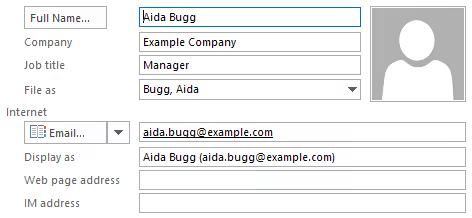
Below is an example Outlook address book entry used to demonstrate the function.
The GetOutlookAddressBookProperty function retrieves various property values from Outlook using an Excel formula.
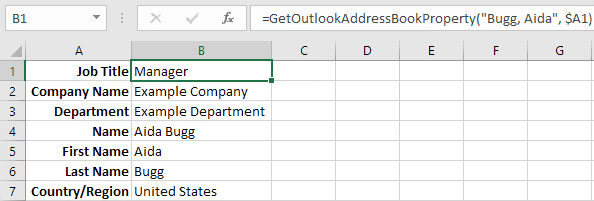
For example, the following formula returns the Department value for the individual named Bugg, Aida.
=GetOutlookAddressBookProperty("Bugg, Aida", "Department")NOTE: Because each formula performs an Outlook lookup, large worksheets containing hundreds or thousands of calls may recalculate slowly.
Further Enhancements
While this example only exposes a few properties, many others are available in the ExchangeUser Interface.
Accessing Country/Region is slightly different because it uses the PropertyAccessor to retrieve the value for an Exchange user. For reference, Microsoft has a list of Microsoft Exchange Property Tags. However, it is no longer maintained and may therefore contain outdated information. As an example, the Unicode variant of the Country/Region property tag is not listed.
Several tools are available to help identify MAPI property tags, such as MFCMAPI and Outlook Spy (which also publishes a list of MAPI Property Tags). In this code, the Country/Region field corresponds to the PR_BUSINESS_ADDRESS_COUNTRY property tag which has a property tag value of 0x3A26001F.
Similarly, phone numbers are accessed differently depending on whether the entry is a local contact or Exchange user.
For local contact phone numbers, the following properties are available (among others):
olResolvedEntry.GetContact.BusinessTelephoneNumberolResolvedEntry.GetContact.HomeTelephoneNumberolResolvedEntry.GetContact.MobileTelephoneNumber
For Exchange entries, the following properties are available for PR_BUSINESS_TELEPHONE_NUMBER, PR_HOME_TELEPHONE_NUMBER, and PR_MOBILE_TELEPHONE_NUMBER respectively.
olExchUser.PropertyAccessor.GetProperty("http://schemas.microsoft.com/mapi/proptag/0x3A08001F")olExchUser.PropertyAccessor.GetProperty("http://schemas.microsoft.com/mapi/proptag/0x3A09001F")olExchUser.PropertyAccessor.GetProperty("http://schemas.microsoft.com/mapi/proptag/0x3A1C001F")
NOTE: The property tag suffix determines the string encoding.
001Eis the 8-bit string (PT_STRING8) variant and001Fis the Unicode (PT_UNICODE) variant of the same property. Modern Exchange environments store string properties in Unicode, so001Fis the correct choice forCountry/Regionand the other string properties accessed viaPropertyAccessor.
Summary
The custom Excel VBA function retrieves specific attributes from the Outlook address book, including local contacts and Exchange users, by querying based on a name or alias. Using the function requires enabling the Microsoft Outlook Object Library in VBA, creating a new module for the code, and applying the function in workbook formulas to fetch properties like job title, company name, or department.