Power Query: Check If Text Value Is Alphabetic Only
When working with data in Power BI or Excel, it is common to need checks for data quality, such as verifying that a value contains only alphabetic characters (A–Z or a–z). Power Query does not have a built-in function for this, but a custom solution is straightforward to implement.
This article covers two practical ways to perform this check using Power Query. The first method uses a reusable custom function. The second method uses an inline if-then-else expression with Text.Select to achieve the same result.
Method 1: Custom Power Query Function
Step 1: Create a New Function
- From the
Hometab in Power Query, selectNew Source>Other Sources>Blank Query. This creates a new blank query. - From the
Hometab, clickAdvanced Editor. - Replace the default query with the following function:
let
  IsAlphaOnly = (inputText as nullable any) as logical =>
    let
      result =
        if inputText = null then
          false
        else if not Value.Is(inputText, type text) then
          false
        else
          let
            chars = Text.ToList(Text.Lower(inputText)),
            charList = List.Transform(
              chars,
              each _ >= "a"
                and _ <= "z"
            ),
            allAlpha = List.AllTrue(charList)
          in
            allAlpha
    in
      result
in
IsAlphaOnly- Click the
Donebutton. - In the
Query Settingspane, underProperties, rename the query toIsAlphaOnly. - Click
Close & Loadto exit Power Query.
Step 2: Test the Function
To test the function:
- From the
Queriespane in Power Query, selectIsAlphaOnly. - A prompt will appear asking for a parameter. For
inputText, enterabc. The function call will look like this:
let
  Source = IsAlphaOnly("abc")
in
Source- Click the
Invokebutton. - The result of the function will appear as a new query named
Invoked Functionin theQueriespane, returning the valueTRUEas expected.
Entering the value abc1xyz instead returns FALSE as expected.
let
  Source = IsAlphaOnly("abc1xyz")
in
  Source
Method 2: Use Text.Select With If-Then-Else
This approach uses Text.Select to filter out non-letter characters, then compares the result to the original text.
if [TEST DATA] = null or not Value.Is([TEST DATA], type text) then
  false
else if Text.Select(Text.Lower([TEST DATA]), {"a" .. "z"}) = Text.Lower([TEST DATA]) then
  true
else
  false
Choosing Between the Two Methods
Both methods produce identical results, but they suit different scenarios. The custom function approach is well suited to workflows that reuse the same check across multiple queries or workbooks, since the function is defined once and invoked wherever needed. The inline Text.Select approach avoids maintaining a separate query, making it a practical choice for a one-off check within a single query step.
Handling Accented Characters
Both methods shown above check only for unaccented letters in the range a through z. Text containing accented characters, such as José or François, returns FALSE under either method, since accented letters fall outside that range.
To include accented characters, add the specific characters needed rather than attempting to cover every possible accented letter with a range. This keeps the check explicit and avoids inadvertently including non-letter characters that may fall between accented letters in Unicode ordering.
The custom function’s character check relies on a range comparison (_ >= "a" and _ <= "z") rather than Text.Select. Range comparisons work for the base alphabet because a through z are contiguous in Unicode, but accented characters are not guaranteed to be contiguous with each other or with the base alphabet. Replacing the range comparison with a membership check against an explicit list of allowed characters avoids this problem:
let
  IsAlphaOnly = (inputText as nullable any) as logical =>
    let
      result =
        if inputText = null then
          false
        else if not Value.Is(inputText, type text) then
          false
        else
          let
            allowedChars = List.Combine({{"a" .. "z"}, {"é", "è", "ê", "ë", "ñ", "ü", "ö", "ä"}}),
            chars = Text.ToList(Text.Lower(inputText)),
            charList = List.Transform(
              chars,
              each List.Contains(allowedChars, _)
            ),
            allAlpha = List.AllTrue(charList)
          in
            allAlpha
    in
      result
in
  IsAlphaOnly
The allowedChars list combines the base alphabet range with the specific accented characters needed, using List.Combine to merge the two lists.
The same explicit-character approach applies to the Text.Select method:
if [TEST DATA] = null or not Value.Is([TEST DATA], type text) then
  false
else if Text.Select(Text.Lower([TEST DATA]), {"a" .. "z", "é", "è", "ê", "ë", "ñ", "ü", "ö", "ä"}) = Text.Lower([TEST DATA]) then
  true
else
  false
In both methods, extend the list of accented characters to match whichever letters are relevant to the source data, rather than trying to anticipate every possible character in advance.
Results
The following comparison uses sample data in an Excel table named TBL_TEST_DATA and the Power Query code below.
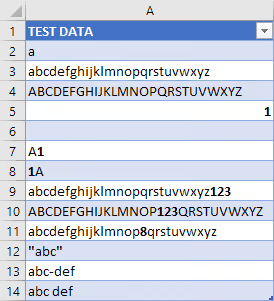
let
  Source = Excel.CurrentWorkbook(){[Name = "TBL_TEST_DATA"]}[Content],
  #"Added Custom - IsAlphaOnly Function" = Table.AddColumn(
    Source,
    "Is Alpha Only? (Function)",
    each IsAlphaOnly([TEST DATA])
  ),
  #"Added Custom - Text.Select" = Table.AddColumn(
    #"Added Custom - IsAlphaOnly Function",
    "Is Alpha Only? (Text.Select)",
    each
      if [TEST DATA] = null or not Value.Is([TEST DATA], type text) then
        false
      else if Text.Select(Text.Lower([TEST DATA]), {"a" .. "z"}) = Text.Lower([TEST DATA]) then
        true
      else
        false
  )
in
  #"Added Custom - Text.Select"
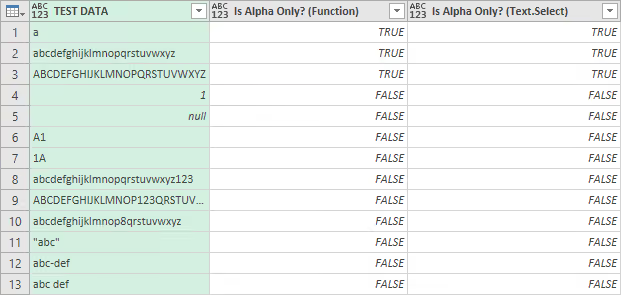
Both methods return TRUE for alphabetic-only values and FALSE for entries that contain numbers, symbols, or are null.
NOTE: Both methods return
TRUEfor an empty string because there are no non-alphabetic characters present. If empty strings should be considered invalid, add an explicit empty-string check to either approach.
Summary
Verifying alphabetic-only text in Power Query is straightforward with either a custom function or Text.Select. Both methods are effective, and the choice depends on the specific workflow and data model in use.