Power Query: Check If Text Starts With a Capital Letter
As mentioned in previous articles, Power Query does not natively support regular expressions, so custom functions often need to be created for specific string validations.
This check is useful when validating imported or user-entered data, such as confirming that names, titles, or codes follow proper capitalization before loading them into a data model. It also helps flag inconsistent formatting in source data during data cleansing.
Building a simple text validation function to check whether a string starts with a capital letter is easy using M code, even though Power Query does not offer a built-in feature for this. The function returns TRUE if the first character is a capital letter (A–Z) and FALSE otherwise.
A common first approach is to compare a character against Text.Upper of itself, but this method incorrectly returns TRUE for digits and symbols, since those characters are unaffected by case conversion. Checking the character’s Unicode code point avoids that problem.
This function checks only the standard ASCII range (A–Z), so accented capital letters such as É or Ñ return FALSE. Extending the function to support Unicode letter ranges is possible but adds complexity beyond the scope of this example.
Step 1: Create a New Function
- From the
Hometab in Power Query, selectNew Source>Other Sources>Blank Query. This creates a new blank query. - From the
Hometab, clickAdvanced Editor. - Replace the default query with the following function:
let
  StartsWithCapital = (inputText as nullable any) as logical =>
    let
      isValid = inputText <> null
        and Value.Is(inputText, type text)
        and Text.Length(inputText) > 0,
      firstChar = if isValid then Text.Start(inputText, 1) else "",
      ascii = if isValid then Character.ToNumber(firstChar) else - 1,
      isCapital = ascii >= 65 and ascii <= 90
    in
      isCapital
in
StartsWithCapital- Click the
Donebutton. - In the
Query Settingspane, underProperties, rename the query toStartsWithCapital. - Click
Close & Loadto exit Power Query.
Step 2: Test the Function
To test the function:
- From the
Queriespane in Power Query, selectStartsWithCapital. - A prompt will appear asking for a parameter. For
inputText, enterAbc. The function call will look like this:
let
  Source = StartsWithCapital("Abc")
in
Source- Click the
Invokebutton. - The result of the function will appear as a new query named
Invoked Functionin theQueriespane, returning the valueTRUEas expected.
Entering the value abc instead returns FALSE as expected.
let
  Source = StartsWithCapital("abc")
in
  Source
Results
Using sample data from an Excel table named TBL_TEST_DATA, the function can be applied across multiple rows using the following Power Query code:
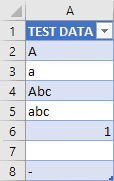
let
  Source = Excel.CurrentWorkbook(){[Name = "TBL_TEST_DATA"]}[Content],
  #"Added Custom" = Table.AddColumn(
    Source,
    "Starts With Capital?",
    each StartsWithCapital([TEST DATA])
  )
in
  #"Added Custom"
The function returns TRUE for values beginning with a capital letter and FALSE for all other entries.
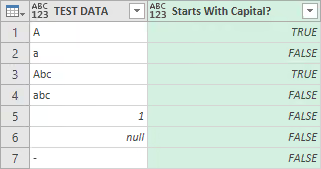
As an alternative to checking the Unicode code point, the following expression achieves the same result for basic Latin capital letters:
Text.Start(inputText, 1) = Text.Upper(Text.Start(inputText, 1))
  and Text.Start(inputText, 1) <> Text.Lower(Text.Start(inputText, 1))
This approach avoids checking a Unicode code point directly, but requires two case-conversion comparisons to correctly exclude digits and symbols, and still requires the same isValid guard for null, non-text, and empty-string inputs.
Summary
Checking whether a string starts with a capital letter in Power Query requires a custom M function, since no built-in feature covers this case. The approach shown here checks the Unicode code point of the first character, which correctly excludes digits and symbols that a simple case-conversion comparison would miss. The function handles null, non-text, and empty-string inputs, and can be applied to a single value or across a table column, as shown in the results above.