Power Query: Get the Corresponding Value for a Date Within a Date Range
This article demonstrates how to retrieve the value associated with the date range containing a given date using Power Query. While this example focuses on retrieving hourly rates and calculating daily pay, the same approach can be applied to other scenarios such as determining time-based sales, employee salaries, or discount rates based on date ranges.
Instructions
Step 1: Create Underlying Data
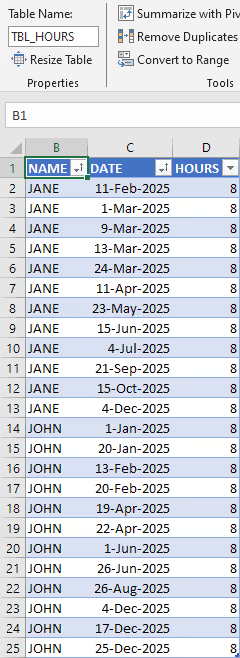
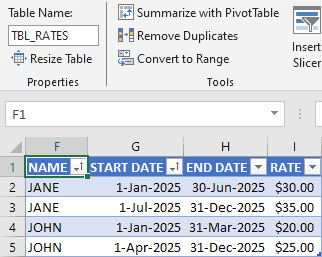
The goal is to calculate the total pay for each person on each date by multiplying the hours worked by the applicable rate for that day. Two data tables are used for this task.
The first table (TBL_HOURS) contains the hours worked by each person on a particular date.
The second table (TBL_RATES) lists the valid hourly rate for each person over a specific date range.
Step 2: Load Data in Power Query
Next, create two queries in Power Query to load the data. Both queries should be set as Connection Only.
Load TBL_HOURS
- From the
Datatab in Excel, clickGet DatathenFrom Other Sourcesand selectBlank Query. - The
Power Query Editorwindow opens. - From the
Hometab in Power Query, clickAdvanced Editor. - The
Advanced Editorwindow opens. - Paste the following code into the Advanced Editor window to retrieve the
TBL_HOURSdata. - Click the
Donebutton. - In the
Query Settingspane under thePropertiessection, rename the query toQRY_TBL_HOURS.
let
  Source = Excel.CurrentWorkbook(){[Name = "TBL_HOURS"]}[Content],
  #"Changed Type" = Table.TransformColumnTypes(
    Source,
    {
      {"NAME", type text},
      {"DATE", type date},
      {"HOURS", type number}
    }
  )
in
  #"Changed Type"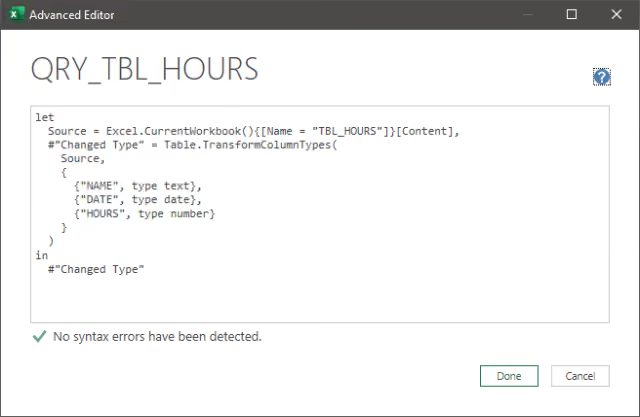
Load TBL_RATES
- From the
Hometab in Power Query, clickNew SourcethenOther Sourcesand selectBlank Query. - From the
Hometab in Power Query, clickAdvanced Editor. - The
Advanced Editorwindow opens. - Paste the following code into the Advanced Editor window to retrieve the
TBL_RATESdata. - Click the
Donebutton. - In the
Query Settingspane under thePropertiessection, rename the query toQRY_TBL_RATES.
let
  Source = Excel.CurrentWorkbook(){[Name = "TBL_RATES"]}[Content],
  #"Changed Type" = Table.TransformColumnTypes(
    Source,
    {
      {"NAME", type text},
      {"START DATE", type date},
      {"END DATE", type date},
      {"RATE", Currency.Type}
    }
  )
in
  #"Changed Type"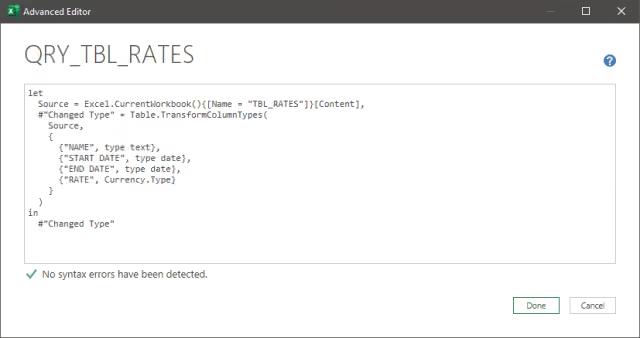
Step 3: Create Lookup Query
Now, create a lookup query to match the data from TBL_HOURS with the correct rate from TBL_RATES.
- From the
Hometab in Power Query, clickNew SourcethenOther Sourcesand selectBlank Query. - From the
Hometab in Power Query, clickAdvanced Editor. - The
Advanced Editorwindow opens. - Paste the following code into the Advanced Editor window.
- Click the
Donebutton. - In the
Query Settingspane under thePropertiessection, rename the query toQRY_TBL_SPEND. - Close the Power Query Editor and load
QRY_TBL_SPENDto a table in a new worksheet.
let
  Source_QRY_TBL_HOURS = QRY_TBL_HOURS,
  Source_QRY_TBL_RATES = QRY_TBL_RATES,
  #"Added Column RATE" = Table.AddColumn(
    Source_QRY_TBL_HOURS,
    "RATE",
    each Table.SelectRows(
      Source_QRY_TBL_RATES,
      (rates) =>
        rates[NAME] = [NAME] and ([DATE] >= rates[START DATE] and [DATE] <= rates[END DATE])
    )[RATE]{0},
    Currency.Type
  ),
  #"Added Column DAILY PAY" = Table.AddColumn(
    #"Added Column RATE",
    "DAILY PAY",
    each [HOURS] * [RATE],
    Currency.Type
  )
in
  #"Added Column DAILY PAY"
NOTE: If there is a chance the query will not find a matching rate, change
[RATE]{0}to[RATE]{0}?. Adding the?makes the query returnnullinstead of an error when no corresponding value is found. This approach evaluatesTable.SelectRowsonce for every row inSource_QRY_TBL_HOURS, comparing it against the fullSource_QRY_TBL_RATEStable each time. For larger datasets, expandingTBL_RATESinto one row per covered date and merging onNAMEandDATEperforms significantly better than the nested-filter method shown here.
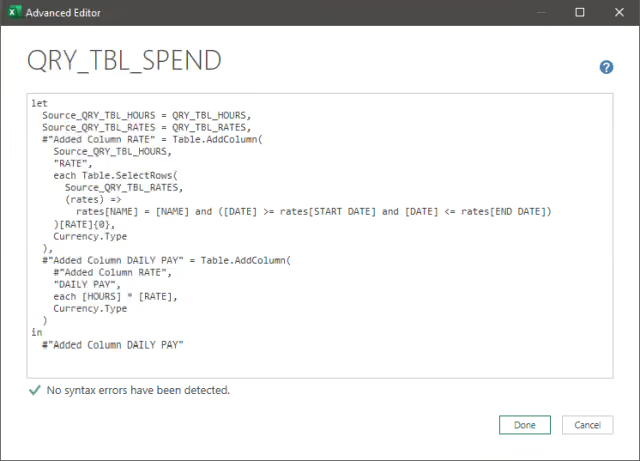
Query Explanation
- The query loads the
QRY_TBL_HOURSandQRY_TBL_RATEStables. - A new custom column named
RATEis added toSource_QRY_TBL_HOURS. This step retrieves the applicable rate by comparing the person’s name and date inSource_QRY_TBL_HOURSto the valid date range inSource_QRY_TBL_RATES. If a match is found, the corresponding rate is returned. - Another custom column is added to calculate the daily pay by multiplying the hours worked by the corresponding rate.
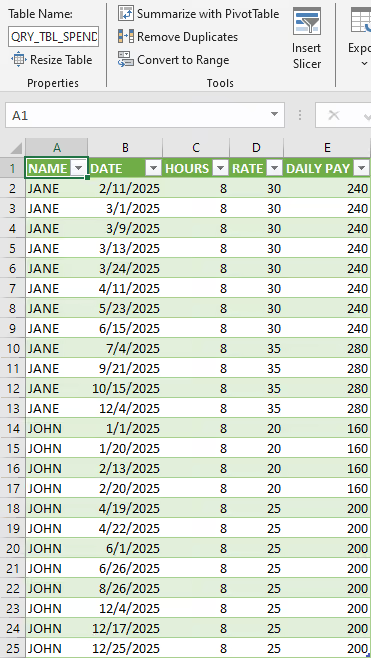
Results
Each record now includes the applicable hourly rate and calculated daily pay based on the employee’s effective rate during that period. This process ensures that the right rate is applied, and the total pay is accurately calculated.
Summary
This article demonstrates how to use Power Query to retrieve values based on a date range and perform calculations based on those values. This same approach can be adapted whenever records must be matched against effective-date ranges, including pricing schedules, tax brackets, benefit plans, subscription periods, and other time-based lookup scenarios.