Power BI: Convert UTC to Eastern Time in Power Query With Daylight Saving Adjustments
Dealing with time-based data, especially time zones and daylight saving time, in Power BI and Power Query can be frustrating. There is no built-in function that reliably converts UTC (Coordinated Universal Time) timestamps to local time while accounting for daylight saving time in both Power BI Desktop and the Power BI Service. While Power BI Desktop correctly displays DateTime.LocalNow() and DateTime.FixedLocalNow() based on the user’s machine, the timestamps lose their time zone information when the report is published to the Power BI service. Functions such as DateTimeZone.ToLocal() are affected the same way. This happens because Power BI adjusts the time based on the localized time of the machine during a refresh. Since the Power BI service operates in the cloud, it defaults to UTC as the standard time.
Displaying timestamps in UTC is not ideal. Most users find it confusing and expecting them to mentally convert time zones is impractical. Many proposed solutions have logic errors related to daylight saving time or require external API calls or scraping from other websites. In this article, a custom Power Query function is used to convert a timestamp to Eastern Time, correctly adjusting for daylight saving time. While this solution is specific to U.S. Eastern Time, it can easily be adapted for other time zones.

Instructions
Step 1: Create a New Power Query Function
In the United States, daylight saving time starts on the second Sunday in March and ends on the first Sunday in November. The time change occurs at 2:00 a.m. local time.
The SwitchZoneET function accepts a datetimezone parameter. First, the function converts the supplied argument to UTC and extracts the year. This year is then used to calculate the second Sunday in March and the first Sunday in November using Date.DayOfWeek and some math with the #duration function. Internally, the function works with UTC timestamps for consistency. To determine daylight saving time start and end, the function adds UTC-based time components (for example, 7:00 a.m. UTC for daylight saving start and 6:00 a.m. UTC for daylight saving end). These correspond to 2:00 a.m. Eastern Time.
The original argument, adjusted for UTC, is compared to the calculated daylight saving time start and end dates/times. If the timestamp falls between these transition times, the time zone offset is -4 hours (Eastern Daylight Time). If it falls outside, the offset is -5 hours (Eastern Standard Time).
NOTE: This function only handles conversions and adjustments for Eastern Time. For other U.S. time zones that observe the same March/November transition dates, adjust the
-4/-5values inOFFSET_HOURSaccordingly: Central Time uses-5/-6, Mountain Time uses-6/-7, and Pacific Time uses-7/-8.
- From the
Hometab in Power Query, selectNew Source>Other Sources>Blank Query. This creates a new blank query. - From the
Hometab, clickAdvanced Editor. - Replace the default query with the following function:
let
  SwitchZoneET = (dateTimeZone as datetimezone) =>
    let
      dtz_utc = DateTimeZone.ToUtc(dateTimeZone),
      dtz_utc_year = Date.Year(dtz_utc),
      MARCH_START = #date(dtz_utc_year, 3, 1),
      MARCH_START_DAY_OF_WEEK = Date.DayOfWeek(MARCH_START, Day.Sunday),
      DST_START_DATE = MARCH_START
        + (
          if MARCH_START_DAY_OF_WEEK > 0 then
            #duration(14 - MARCH_START_DAY_OF_WEEK, 0, 0, 0)
          else
            #duration(7, 0, 0, 0)
        ),
      DST_START_DTZ_UTC = DateTimeZone.ToUtc(
        #datetimezone(
          Date.Year(DST_START_DATE),
          Date.Month(DST_START_DATE),
          Date.Day(DST_START_DATE),
          7,
          0,
          0,
          0,
          0
        )
      ),
      NOVEMBER_START = #date(dtz_utc_year, 11, 1),
      NOVEMBER_START_DAY_OF_WEEK = Date.DayOfWeek(NOVEMBER_START, Day.Sunday),
      DST_END_DATE = NOVEMBER_START
        + (
          if NOVEMBER_START_DAY_OF_WEEK > 0 then
            #duration(7 - NOVEMBER_START_DAY_OF_WEEK, 0, 0, 0)
          else
            #duration(0, 0, 0, 0)
        ),
      DST_END_DTZ_UTC = DateTimeZone.ToUtc(
        #datetimezone(
          Date.Year(DST_END_DATE),
          Date.Month(DST_END_DATE),
          Date.Day(DST_END_DATE),
          6,
          0,
          0,
          0,
          0
        )
      ),
      OFFSET_HOURS =
        if (dtz_utc >= DST_START_DTZ_UTC and dtz_utc < DST_END_DTZ_UTC) then
          -4
        else
          -5,
      dateTimeZoneET = DateTimeZone.SwitchZone(dtz_utc, OFFSET_HOURS)
    in
      dateTimeZoneET
in
SwitchZoneET- Click the
Donebutton. - In the
Query Settingspane, underProperties, rename the query toSwitchZoneET. - Click
Close & Loadto exit Power Query.
Because SwitchZoneET runs once per row, invoking it against a large table can be slow. Apply the function as late as possible in the query, after filtering steps have reduced the row count, to minimize the number of evaluations.
Step 2: Testing the Function
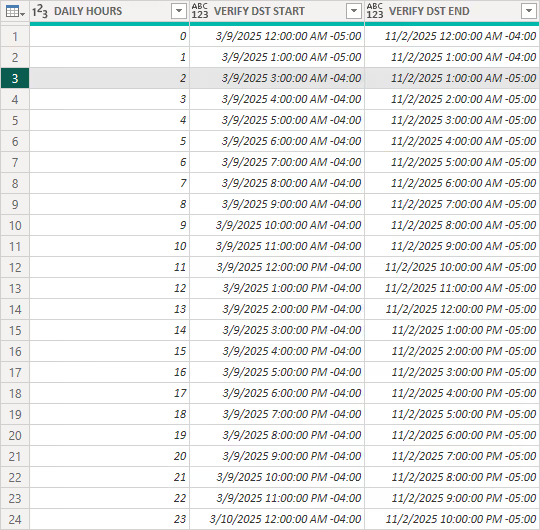
In 2025, U.S. daylight saving time begins on March 9 and ends on November 2.
To verify that the function performs as expected on those particular days, create a test query that executes the function for every hour in each day. This query generates a list from 0 through 23 and then passes each value to SwitchZoneET for March 9 (VERIFY DST START) and November 2 (VERIFY DST END).
let
  Source = List.Generate(() => 0, each _ <= 23, each _ + 1),
  #"Converted to Table" = Table.FromList(
    Source,
    Splitter.SplitByNothing(),
    null,
    null,
    ExtraValues.Error
  ),
  #"Renamed Columns" = Table.RenameColumns(
    #"Converted to Table",
    {{"Column1", "DAILY HOURS"}}
  ),
  #"Changed Type" = Table.TransformColumnTypes(
    #"Renamed Columns",
    {{"DAILY HOURS", Int64.Type}}
  ),
  #"Added VERIFY DST START" = Table.AddColumn(
    #"Changed Type",
    "VERIFY DST START",
    each SwitchZoneET(#datetimezone(2025, 3, 9, [DAILY HOURS], 0, 0, - 5, 0))
  ),
  #"Added VERIFY DST END" = Table.AddColumn(
    #"Added VERIFY DST START",
    "VERIFY DST END",
    each SwitchZoneET(#datetimezone(2025, 11, 2, [DAILY HOURS], 0, 0, - 4, 0))
  )
in
  #"Added VERIFY DST END"
As expected, the function returns the correct result for Eastern Standard Time and Eastern Daylight Time with the appropriate time zone offset occurring at the 2:00 a.m. local time.
Results
To further demonstrate the function:
- From the
Queriespane in Power Query, selectSwitchZoneET. - A prompt appears asking for a parameter. For
dateTimeZone, enter1/1/2025 09:00 AM -05:00. The function call looks like this:
let
  Source = SwitchZoneET(#datetimezone(2025, 1, 1, 9, 0, 0, -5, 0))
in
  Source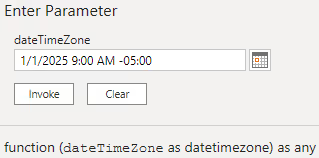
- Click the
Invokebutton. - The result of the function appears as a new query named
Invoked Functionin theQueriespane, returning the value1/1/2025 9:00:00 AM -05:00as expected.

If the value 3/21/2025 07:30 PM -00:00 is entered instead, the corresponding function call returns the value 3/21/2025 3:30:00 PM -04:00 as expected.
let
  Source = SwitchZoneET(#datetimezone(2025, 3, 21, 19, 30, 0, 0, 0))
in
  Source
Summary
Managing time-based data with time zones and daylight saving time in Power BI and Power Query can be challenging, especially when converting UTC to local time. Using a custom Power Query function allows for accurate conversions to a particular time zone with adjustments for daylight saving time. Unlike many published approaches, this solution performs the daylight saving calculation internally and therefore requires no external APIs, lookup tables, or manual offset changes.