Combine Multiple Tables for Clustered Charts in Power BI
Clustered column charts are one of the most commonly used visuals in Power BI. They are ideal for comparing multiple values across categories and are widely used in dashboards, financial reports, and performance analyses.
In many real-world projects, however, the data needed for these charts is stored in separate tables. One table may contain projected values, while another contains actual results. Before you can build an effective visual, this data must first be combined into a consistent format.
This guide walks through a practical, step-by-step method for merging multiple tables and using the result to create a clustered column chart in Power BI.
Scenario Overview
In this example, the data comes from two Excel tables:
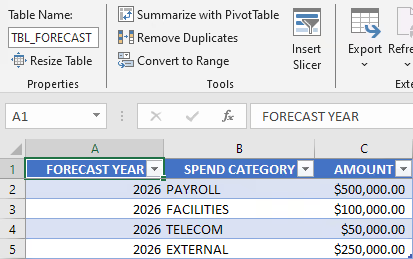
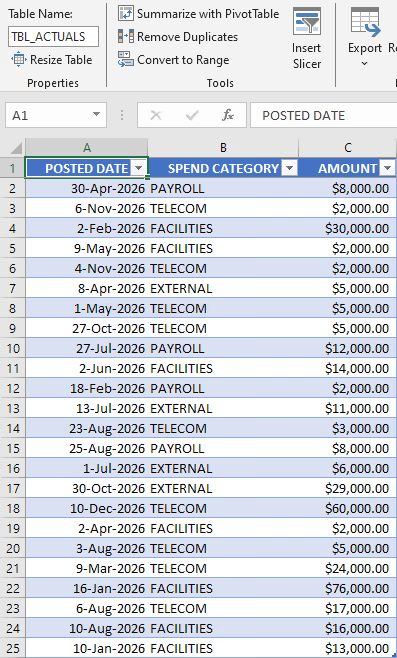
TBL_FORECAST: Contains projected values.TBL_ACTUALS: Contains recorded values.
Both tables include similar fields, such as spend category, but they store different metrics. They also use different date formats, which makes direct comparison difficult.
Because of these differences, the tables cannot be used together in a single clustered chart without additional preparation. They must first be reshaped and combined into a unified structure.
Target Table Structure
Before starting, it helps to define the structure you want to create.
The combined table will contain:
YEARSPEND CATEGORYFORECAST AMOUNTACTUAL AMOUNT
Each metric is stored in its own column, and all rows follow the same layout. This design works well with Power BI visuals and simplifies reporting.
Having a clear target structure in mind helps guide the transformation process and reduces trial and error later.
Instructions
Step 1: Import the Excel Data
- Open Power BI Desktop.
- From the
Homeribbon, selectGet data. - Choose
Excel workbook. - Select your workbook file.
- Load both tables.
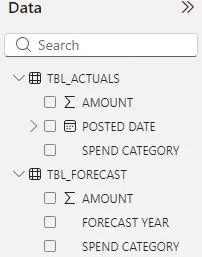
After loading, you should see two tables in the Data pane:
TBL_ACTUALSTBL_FORECAST
At this stage, review the column names and data types. Make sure dates, numbers, and text fields are correctly detected. Fixing these issues early prevents problems later in the process.
Step 2: Create a Combined Table Using DAX
The easiest way to combine these tables is to create a calculated table using DAX.
This approach keeps the transformation inside the Power BI data model and avoids creating additional Power Query steps. It is well suited for cases where the source data is already clean and only needs restructuring.
Key Functions Used
SELECTCOLUMNS: Selects, renames, and rearranges fields.UNION: Combines rows from multiple tables.BLANK(): Creates empty placeholder values.YEAR(): Extracts the year from date fields.
Together, these functions reshape both source tables into the same format and then merge them.
Step 3: Add the DAX Code
In Power BI Desktop:
- Go to the
Modelingribbon. - Select
New table. - Paste the following DAX code.
- Press Enter to create the table.
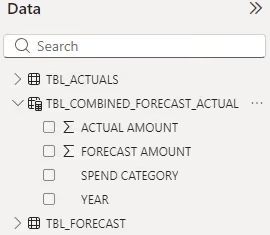
A new table named TBL_COMBINED_FORECAST_ACTUAL will appear in the Data pane with both forecast and actual values.
TBL_COMBINED_FORECAST_ACTUAL =
UNION (
  SELECTCOLUMNS (
    TBL_FORECAST,
    "YEAR", TBL_FORECAST[FORECAST YEAR],
    "SPEND CATEGORY", TBL_FORECAST[SPEND CATEGORY],
    "FORECAST AMOUNT", TBL_FORECAST[AMOUNT],
    "ACTUAL AMOUNT", BLANK ()
  ),
  SELECTCOLUMNS (
    TBL_ACTUALS,
    "YEAR", YEAR ( TBL_ACTUALS[POSTED DATE] ),
    "SPEND CATEGORY", TBL_ACTUALS[SPEND CATEGORY],
    "FORECAST AMOUNT", BLANK (),
    "ACTUAL AMOUNT", TBL_ACTUALS[AMOUNT]
  )
)
This formula reshapes each table so that both produce identical columns. The UNION function then stacks the rows into one combined dataset.
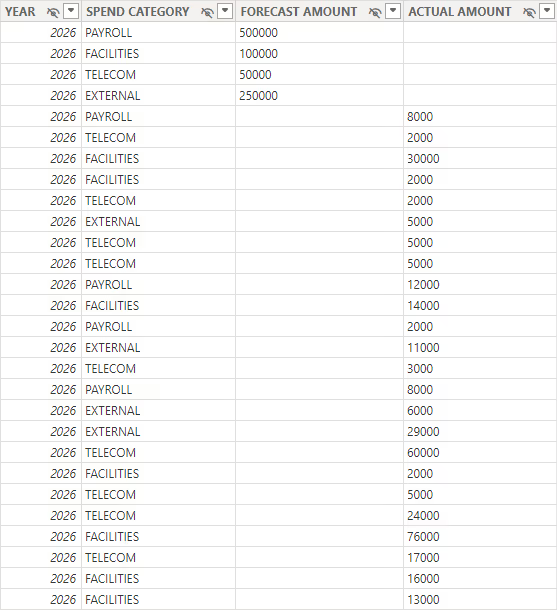
Step 4: Review the Combined Table
After creating the table, open Table view and review the results.
You should see:
- One unified table with consistent columns.
- Either
FORECAST AMOUNTorACTUAL AMOUNTpopulated per row. - The unused measure column left blank.
- All dates converted to years.
This confirms that the transformation was successful.
If values appear in the wrong columns or years are missing, verify the column references and function names in your DAX formula.
Step 5: Create the Clustered Column Chart
Now that the data is prepared, building the chart is simple.
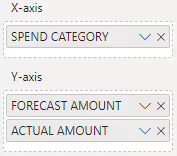
- Go to
Report view. - Add a
Clustered column chartvisual. - Drag
SPEND CATEGORYto theX-axis. - Drag
FORECAST AMOUNTto theY-axis. - Drag
ACTUAL AMOUNTto theY-axis.
Power BI automatically groups the values and displays them side by side.
You can now customize the chart by adjusting labels, titles, colors, and tooltips to match your reporting needs.
Results
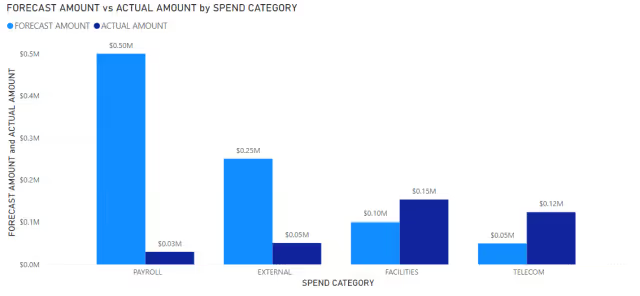
With both measures stored in a single table, the clustered column chart becomes easy to configure and interpret.
The final chart displays spend categories along the horizontal axis, with forecasted and actual amounts shown as side-by-side columns for each category. This layout makes it easy to see differences between projected and recorded values at a glance. Variances, trends, and outliers become immediately visible without requiring additional calculations or filters.
Because the data is unified in one reporting table, Power BI handles aggregation and grouping automatically. There is no need for complex relationships, custom measures, or manual adjustments. The visual responds correctly to slicers and filters, and it remains stable as new data is added.
The screenshot below demonstrates the core objective of this guide: transforming separate source tables into a clean, consistent structure that supports reliable, scalable reporting. By preparing the data properly, you ensure that visuals are accurate, easy to maintain, and suitable for reuse across dashboards.
Alternative Method: Using Power Query
If you prefer to transform data before it reaches the model, you can use Power Query instead of DAX.
This method is useful when:
- Source data requires heavy cleaning.
- Multiple data sources are involved.
- Transformations must be standardized.
- ETL logic needs documentation.
Below is an equivalent Power Query solution. It produces the same combined structure as the DAX approach.
let
  Source = Table.Combine(
    {
      Table.RenameColumns(
        Table.SelectColumns(
          Table.AddColumn(TBL_FORECAST, "ACTUAL AMOUNT", each null),
          {"FORECAST YEAR", "SPEND CATEGORY", "AMOUNT", "ACTUAL AMOUNT"}
        ),
        {{"FORECAST YEAR", "YEAR"}, {"AMOUNT", "FORECAST AMOUNT"}}
      ),
      Table.RenameColumns(
        Table.SelectColumns(
          Table.AddColumn(
            Table.TransformColumns(TBL_ACTUALS, {{"POSTED DATE", Date.Year, Int64.Type}}),
            "FORECAST AMOUNT",
            each null
          ),
          {"POSTED DATE", "SPEND CATEGORY", "FORECAST AMOUNT", "AMOUNT"}
        ),
        {{"POSTED DATE", "YEAR"}, {"AMOUNT", "ACTUAL AMOUNT"}}
      )
    }
  )
in
  Source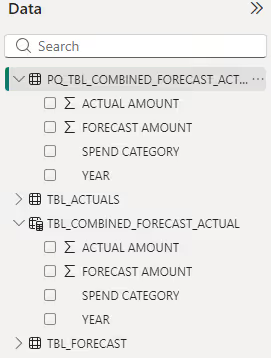
This approach is more complex but provides greater control over data preparation.
Summary
Combining multiple tables into a unified reporting structure makes it much easier to build clustered column charts in Power BI. Using DAX or Power Query, you can reshape your data into a clean, consistent format that supports reliable visualizations. This approach helps you spend less time preparing data and more time delivering meaningful insights.